
Screenshots in the User Dashboard
The Berqun agent can optionally take a screenshot once a minute. The feature and the image quality (Low, Medium, High) are managed on the Screenshot Settings page under Settings.
To view screenshots:
- On the Staff Dashboard, select the employee and switch to the Day view.
- Pick Screenshots from the drop-down next to the page title.
This section appears in the list only in the Day view, only if screenshots are enabled, and only if you have permission to view them.
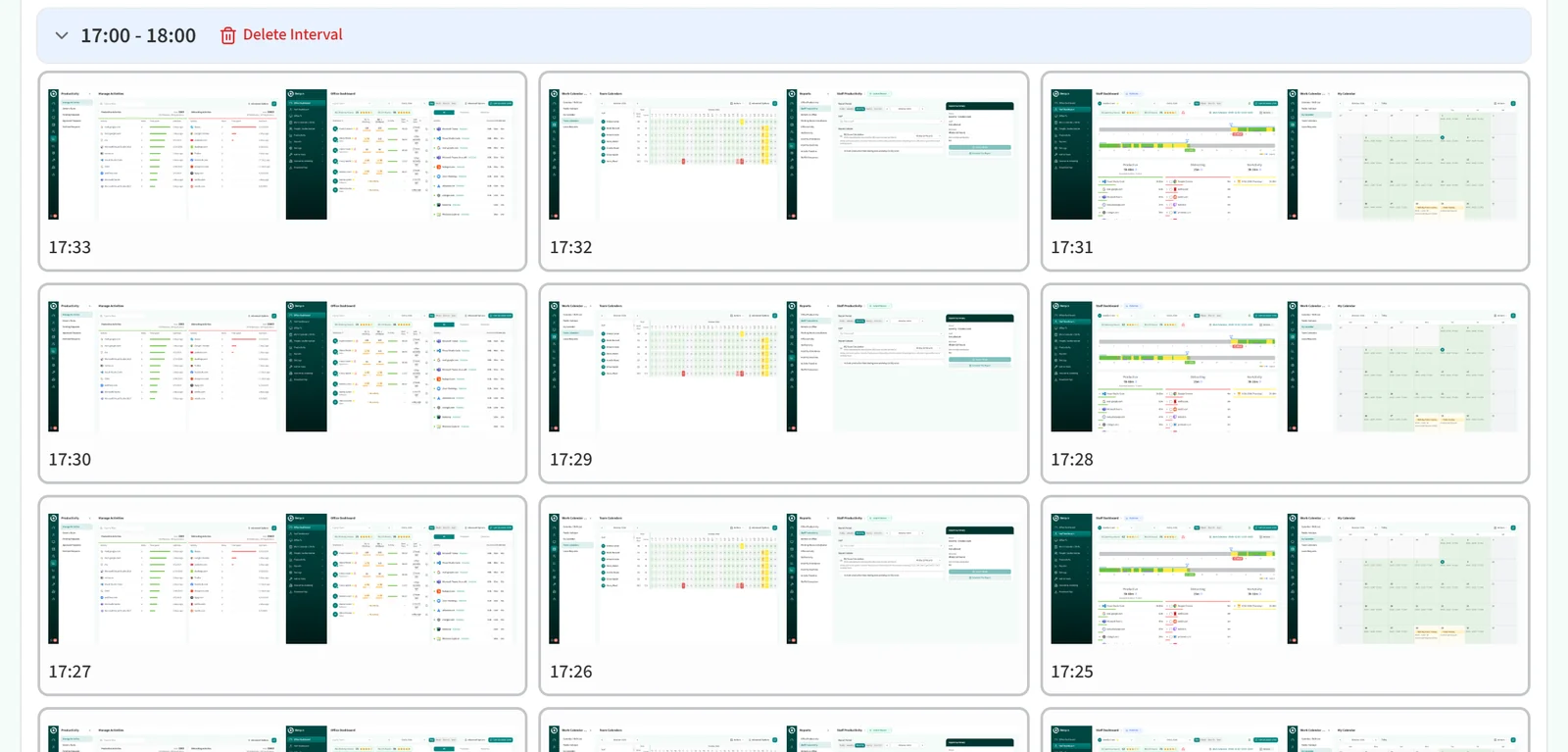
Screenshots are grouped by time interval, and each one shows the time it was taken. Click a screenshot to open it full size and use Previous and Next to move between them. On computers with more than one monitor, each monitor’s image can be opened separately.
The tools above the list are the same as in the Timeline section: 10 min view / Hourly view, Newest / Oldest and Collapse all. The Advanced Options panel has a single option, Show out of working hours. If the list is long, Load more at the bottom loads the rest.
If you have delete permission, Delete Interval in a group header deletes the screenshots in that interval.