
How to Get the Monthly Attendance Report?
The Monthly Attendance report lets you follow your staff’s working time, BQ scores and productivity day by day.
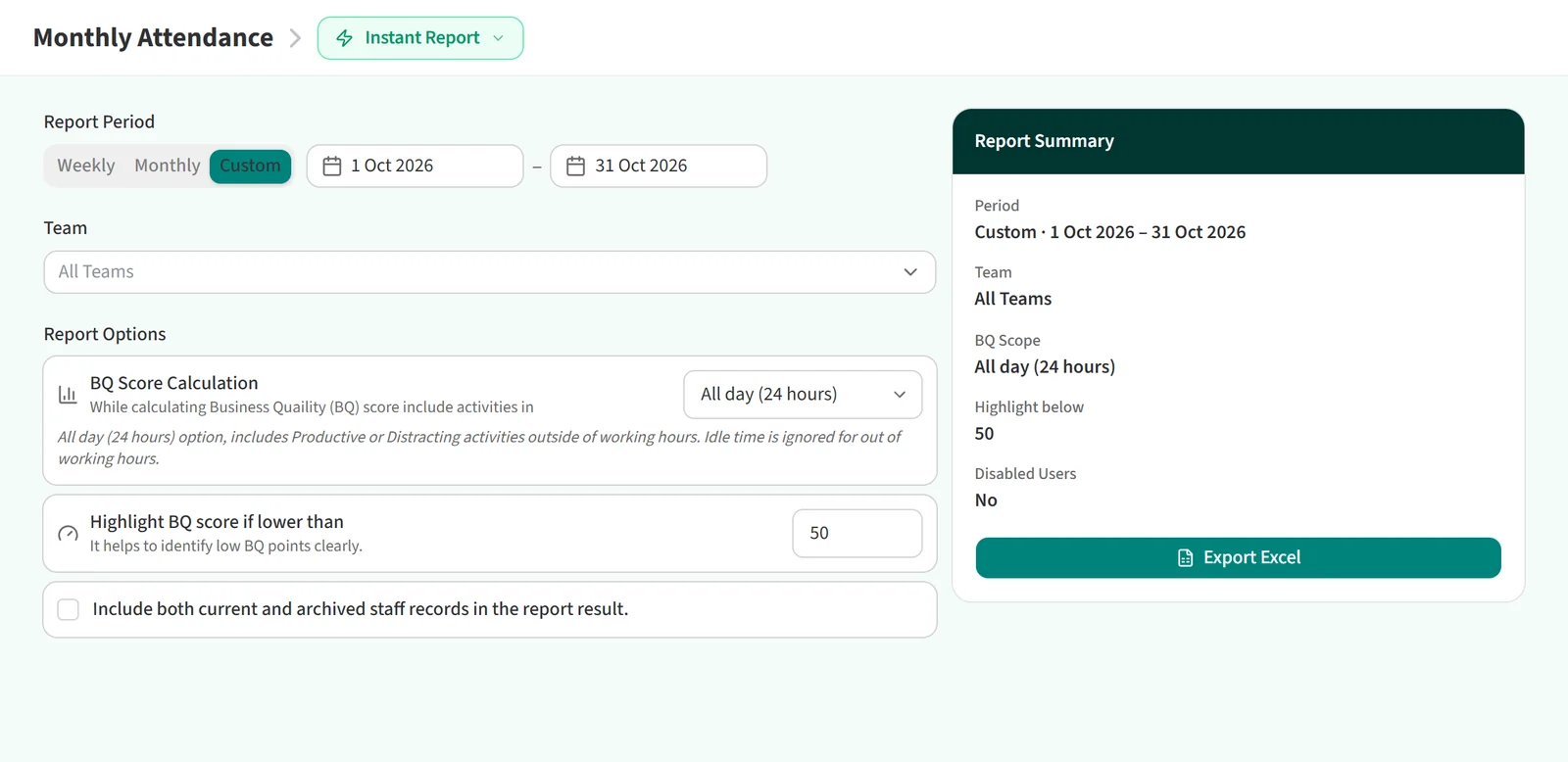
Getting the report
- Open Reports > Monthly Attendance in the left menu.
- Under Report Period, choose Weekly, Monthly or Custom. For Custom, enter a start and end date; the range can be at most 30 days.

- Pick teams in the Team field. If you leave it at All Teams, all staff are included.
- Under BQ Score Calculation, choose which activities count toward the BQ score: Combined, All day (24 hours) or Working hours only.

- If you want days below a certain score highlighted in the Excel file, enter that score in Highlight BQ score if lower than.
- To include archived staff, tick Include both current and archived staff records in the report result. If you picked teams, While calculating team averages, include child team averages as well. also appears.
- Click Export Excel.
With a weekly or monthly period selected, the Report Summary card also shows Schedule This Report. A report for a custom date range cannot be scheduled.
Tabs in the Excel file
The report has four tabs: BQ Timesheet, Working Hours Timesheet, Productive Hours Timesheet and Unproductive Hours Timesheet. Every tab shows the days each person worked and the days they were on monthly or annual leave. Days where the BQ score fell below your threshold are highlighted on every tab.
BQ Timesheet
Lists the BQ score each person got on each day.

Working Hours Timesheet
Shows working hours for each day and the monthly average.

Productive Hours Timesheet
Shows productive hours for each day and the monthly average.

Unproductive Hours Timesheet
Shows unproductive hours for each day and the monthly average.

You may also be interested in: How to Get the Monthly Overtime Report?