
Attendance Status
On the Office Dashboard, attendance is part of the employee table rather than a separate card. Which columns you see depends on the period you select.
Daily view
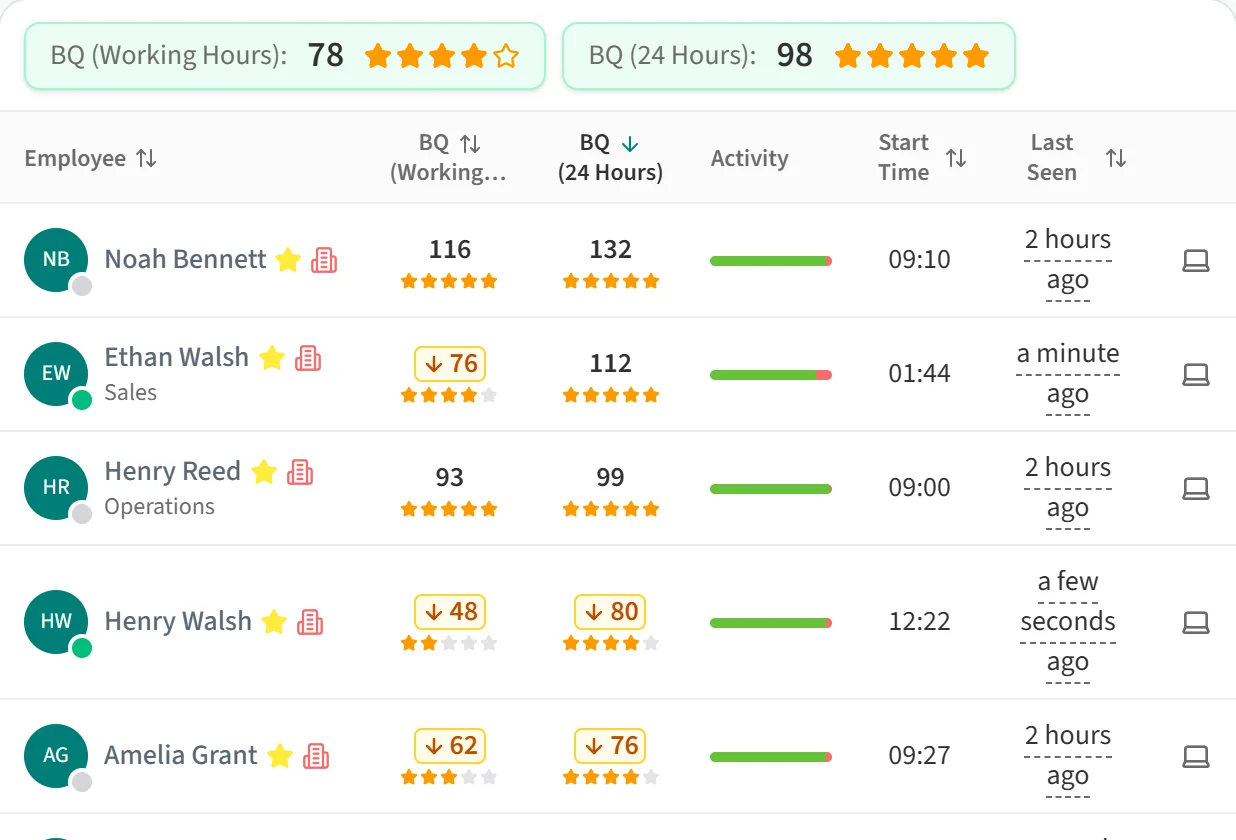
In the Day view, each row shows the employee’s Start Time. When you are looking at today, the last column is Last Seen: the last time Berqun received a signal from that employee’s computer. Hover over it to see the exact date and time. When you look at a past day, End Time takes its place.
The dot on the corner of the avatar shows whether the employee is Online (green) or Offline (grey) right now. For employees with no score that day, the BQ cell gives the reason: No Activity, On Leave, Public Holiday or Non-Working Day. For an employee on leave, hover over the info icon next to the start time to see the reason for the leave.
Weekly view
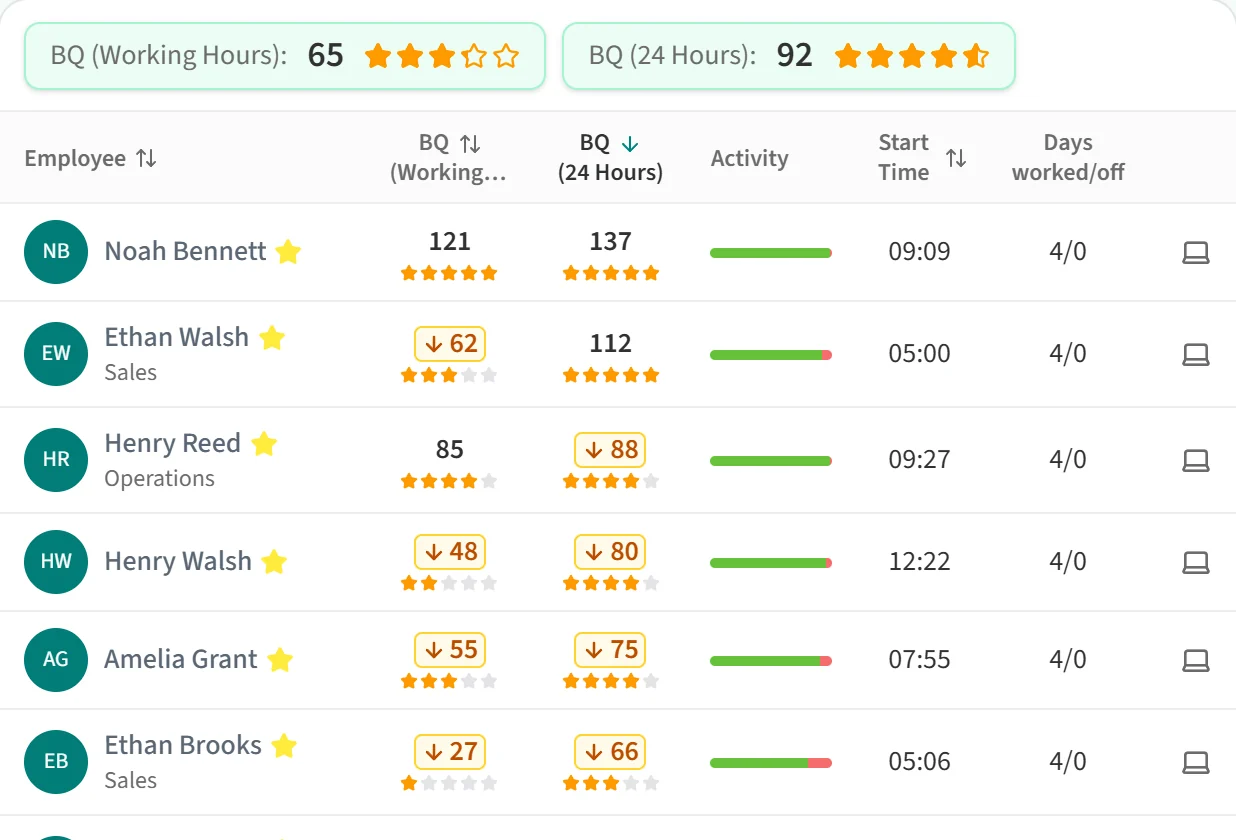
In the Week view the Start Time column stays, and the last column becomes Days worked/off. For example, 3/1 means the employee worked 3 days that week and was off for 1.
Monthly and yearly view
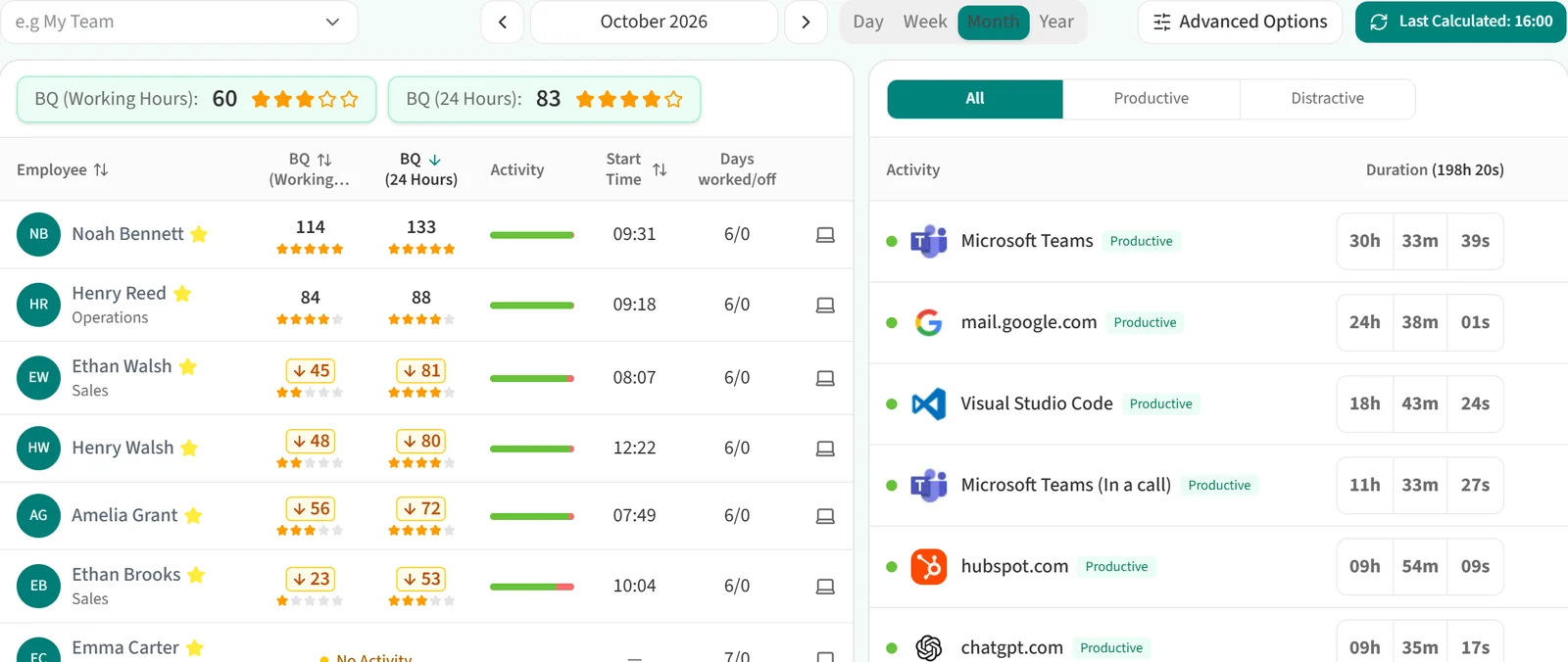
The Month and Year views have the same columns. Here Days worked/off covers the whole selected month or year.
To narrow the list to a particular day status, use the Day Status filter in Advanced Options. It is available in the Day view only.