
Productivity Scores
The employee table on the left of the Office Dashboard shows the productivity score (BQ score) of every employee in the selected team and period. By default the table is sorted from the highest BQ score to the lowest.
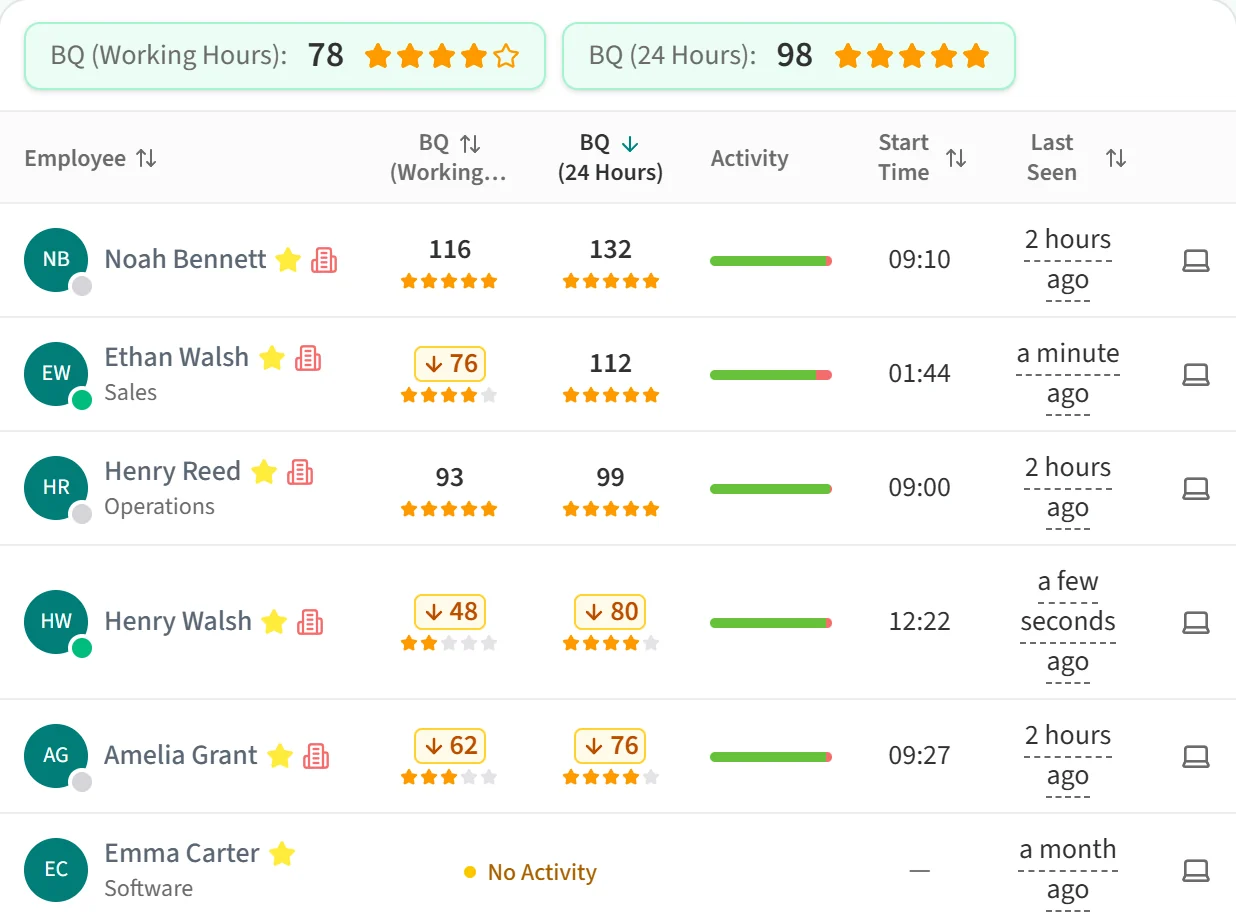
Each row shows:
- The employee’s name and team. A green dot on the corner of the avatar means the employee is Online, a grey dot means Offline. A star next to the name marks a manager, and a house or building icon shows whether the employee worked remotely or from the office that day.
- The BQ score with up to five stars under it. Depending on your company setting, you see one or two BQ columns.
- The bar in the Activity column shows how the employee’s time splits between productive (green), neutral (blue) and distractive (red) activities.
On days without a score, the BQ cell shows the day’s status instead, for example No Activity or On Leave.
Sorting
Click a column heading with an arrow icon (Employee, the BQ columns, Start Time, Last Seen) to sort the list by that column. Click the same heading again to reverse the order.
Scores below average
The boxes above the table show the average BQ score for the selected team and period.

Employees whose BQ score is below this average have their score marked with an amber outline and a down arrow. Hover over a score to see what it is based on and what the average is. To list only these employees, use Show only employees below average in Advanced Options.