
Daily Activities
The Activities section summarises what the employee spent time on in the selected period. Pick Activities from the drop-down next to the page title to open it. It is usually the section that opens first.
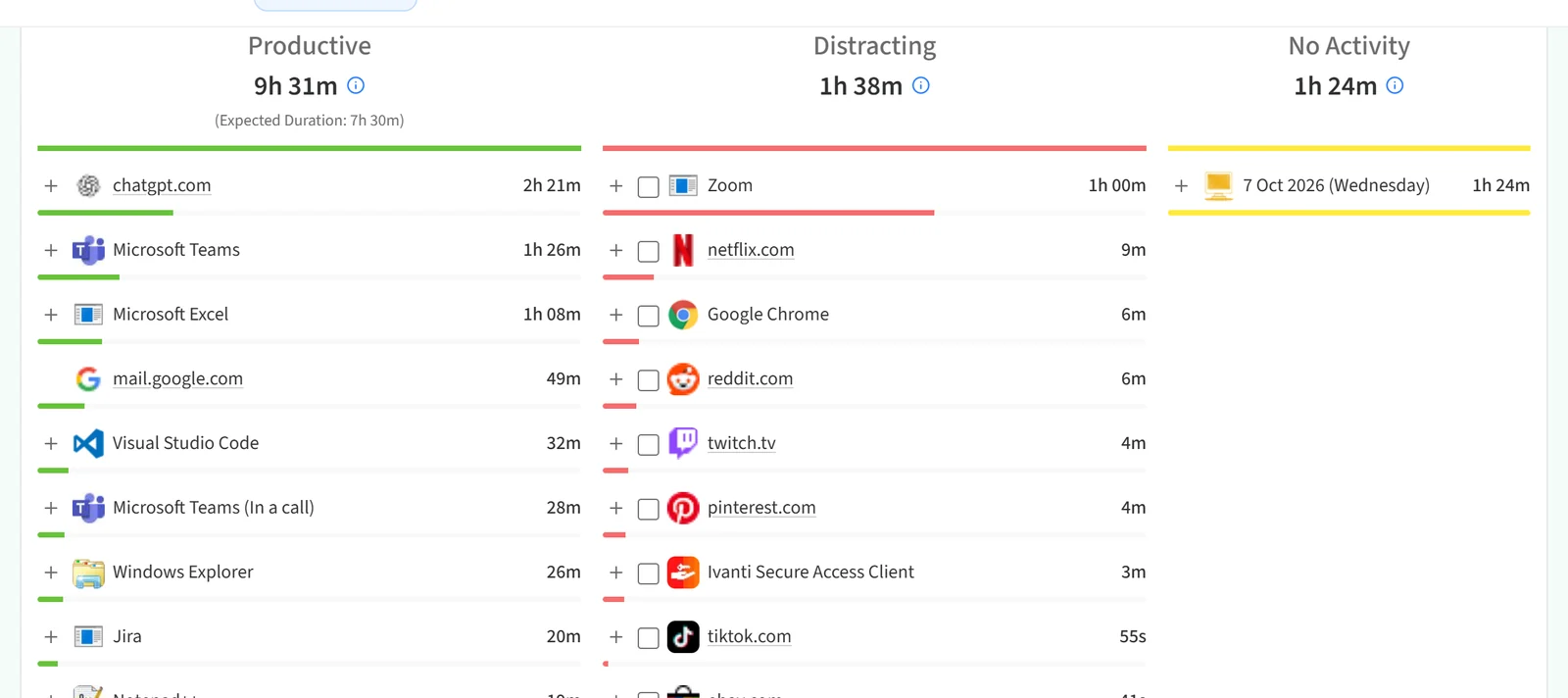
The section has three columns:
- Productive: applications and sites counted as productive. Under the column title you see the total time and the Expected Duration.
- Distracting: applications and sites counted as distracting.
- No Activity: time with no activity on the computer. The Day view lists the day; the other views list dates.
Each row shows the activity name, its duration and a bar for its share of the column total. Rows run from the longest duration to the shortest. In long lists, Show more at the bottom of a column opens the remaining rows.
Opening the details
Click the + at the left of a row to open its breakdown, for example the page titles visited in a browser. Details open in the Day, Week and Month views, but not in the Year view.
Marking a distracting activity as productive
Rows in the Distracting column start with a check box. When you tick one or more rows, a thumbs-up icon appears on the selected rows. Click it to open the Mark as productive window and request that the selected activities count as productive. Activities that are still being calculated show a question mark in place of the check box.
You can switch to the other sections (Timeline, Tickets, Tasks and the rest) from the same drop-down.