
Where Can I See Scheduled Reports?
A scheduled report is generated automatically at the time you set and emailed to the people you choose. Schedules are not collected on one page; each report lists its own schedules on its own page.
Viewing schedules
- Open the report whose schedules you want to see from Reports in the left menu, for example Office Productivity.
- Click the Instant Report button next to the page title and choose Scheduled Reports from the list.
You now see the schedules created for that report. Each row shows how often and when it is sent (for example “Every day at 10:15”), the recipients and exceptions, who created it and when.
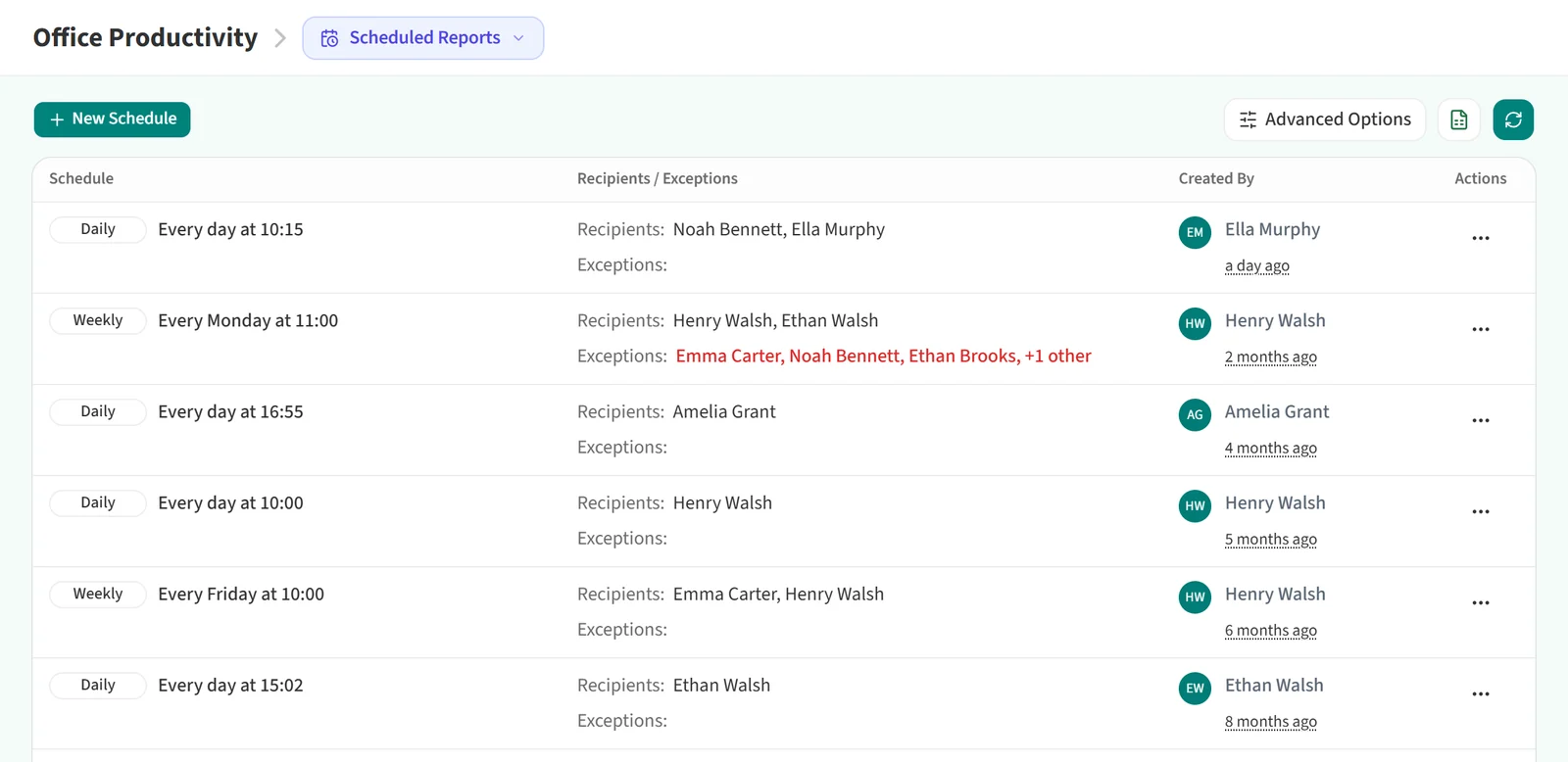
Use Advanced Options to filter the list by frequency, send time, recipients, exceptions, creator or created date. The Excel icon next to it exports the list, and the refresh icon reloads it. To see a schedule’s details or delete it, open the … menu at the end of the row and choose View Detail or Remove.
To go back to the report screen, choose Instant Report from the same button.
Creating a schedule
A schedule is built from the selections on the report page. The New Schedule button in the list also takes you to the report page.
- On the report page, set the period, team or staff, and report options.
- Click Schedule This Report in the Report Summary card. The Create a New Schedule page opens.
- Under Schedule, pick the Send time. For weekly reports you also pick the day of the week.
- Under Recipients, choose All Staff or Select Staff and Teams. Selecting a team includes its members.
- If some people should not get the report, add them under Recipient Exceptions.
- Click Save Schedule.
How often the schedule runs comes from the period chosen on the report page: daily reports go out every day, weekly reports on the day you pick, and monthly reports on the first day of each month, each covering the previous period. To change the selections, use Edit Report Filters on the schedule page to go back to the report; the recipients you picked are kept.
Schedule This Report only appears for periods that can be scheduled. Yearly reports and reports for a custom date range cannot be scheduled. Monthly Attendance, Monthly Overtime and Remote VS Office can only be scheduled weekly or monthly. Activity Timeline and Staffs & Computers have no scheduling. If you never see the button, your role does not have permission to schedule reports.