
How to Add a New Work Schedule?
A new work schedule takes three steps: you create the schedule, assign who will use it and, if needed, link it to a public holiday list.
1. Create the schedule
- Open Calendar / Shift List under Work Calendar / Shifts in the left menu.
- Click New Work Schedule above the list.
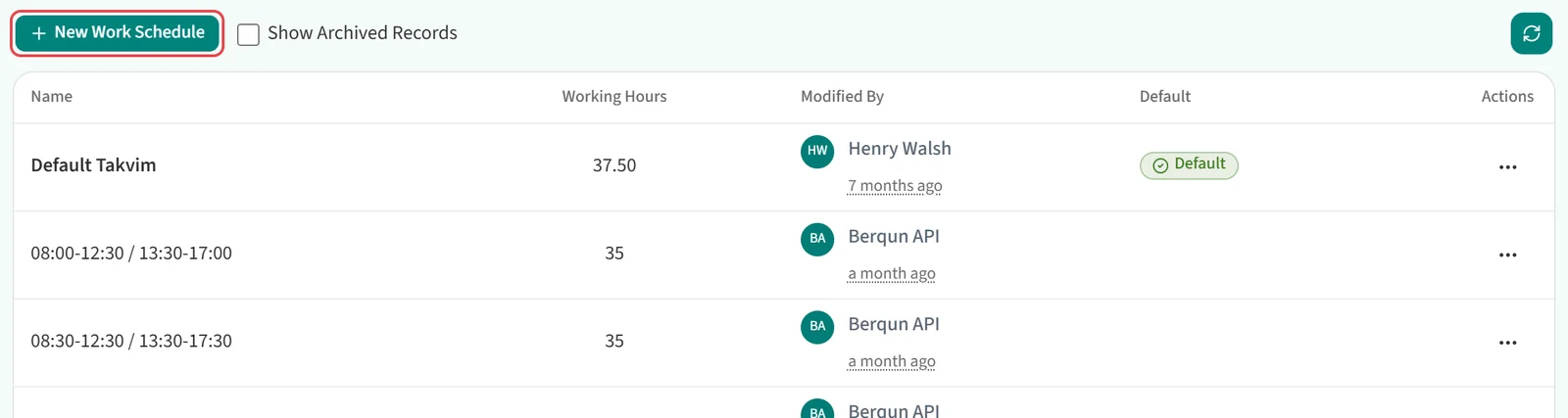
- Type the schedule’s name in Work Schedule Name.
- Under BQ Calculation Policy, choose All day (24 hours) or Working hours only. All day tracks productivity across the whole day. The other option counts only productive activity inside the defined working hours.
- In Workdays, use Edit Work Day in each day card’s … menu to enter the hours and the expected productive hours. Move the days nobody works to Days Off with Mark as Day Off in the same menu. No BQ score is calculated on those days.
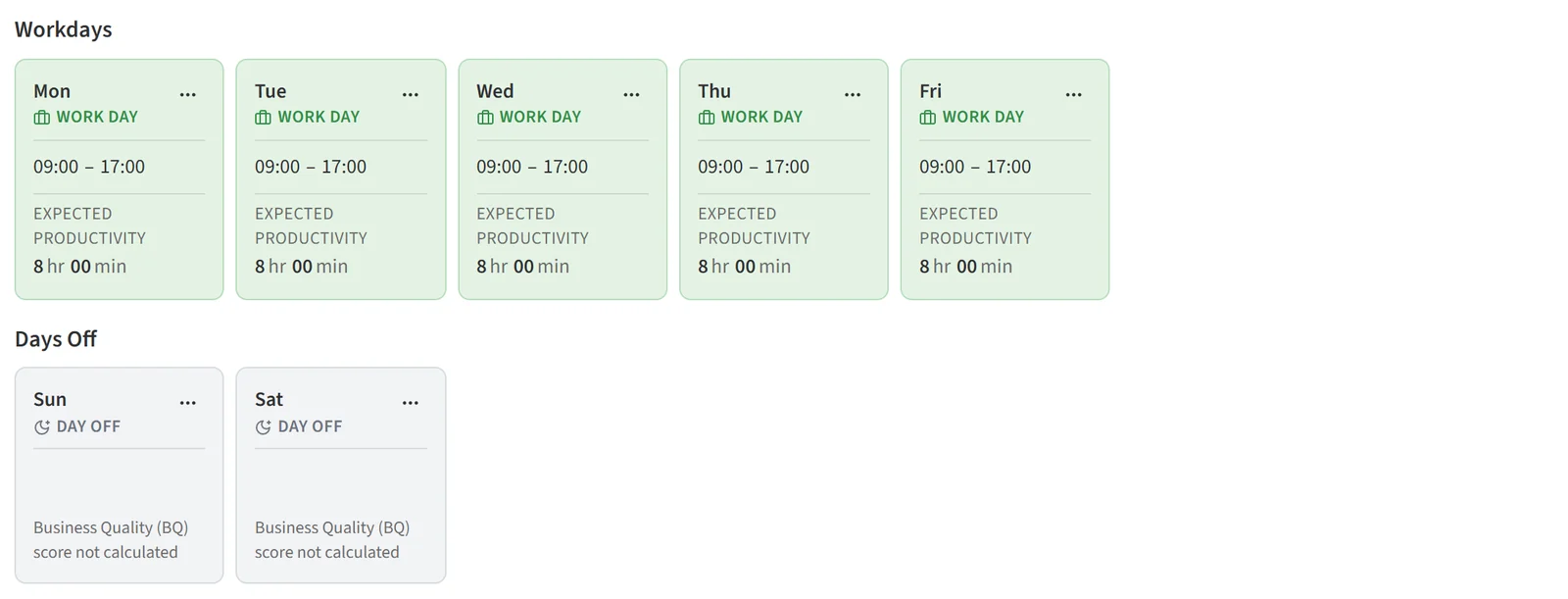
For what to watch when entering hours, see “Things to Watch When Editing Workdays”.
- Click Save at the top of the page.
If the name is empty, the schedule is not saved and the message “Name is required” appears. If a workday has invalid hours, the app tells you which days need fixing.

After saving you return to the list page.
2. Assign the schedule to people and teams
The assignment and public holiday tabs become available once the schedule is saved. Open the schedule with Edit in its row’s … menu and go to the Team / Staff Assignment tab. Click Add next to the Assignments list.
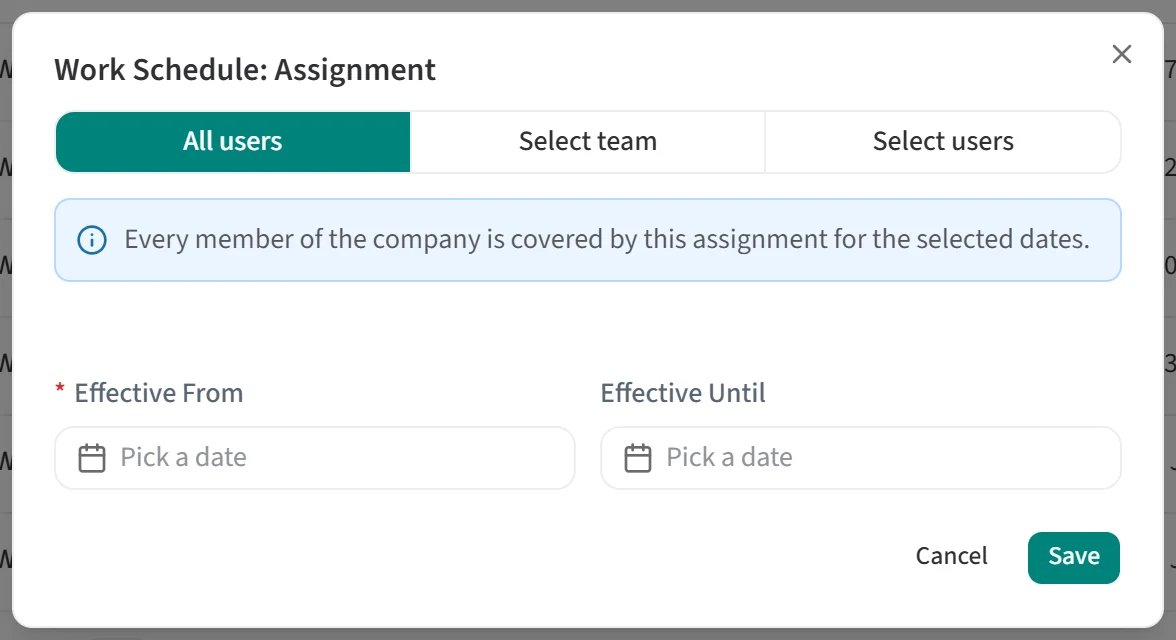
In the Work Schedule: Assignment dialog, choose who will use the schedule:
- All users: everyone in the company is covered by this assignment for the selected dates.
- Select team: pick a team. Tick Include Team Below to cover its sub-teams too.
- Select users: pick a specific person.
When picking a team, you can narrow the list with Search teams. Each team shows its member count.
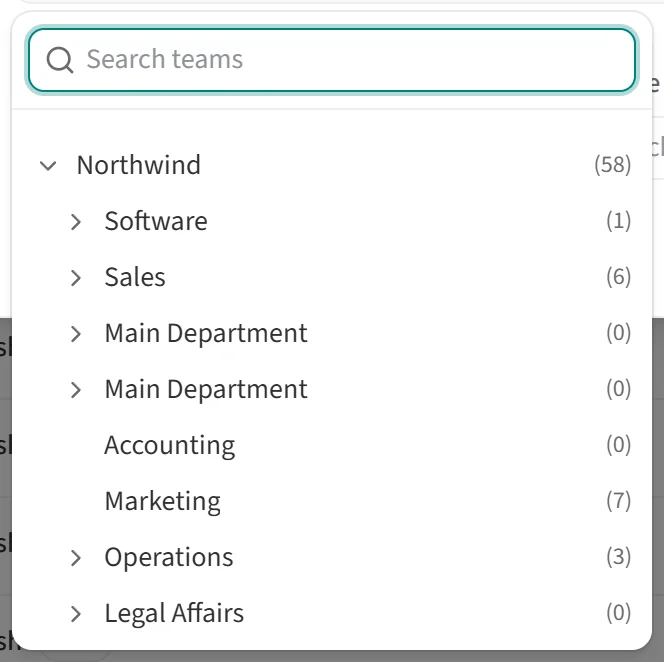
Effective From is required and Effective Until is optional. Click Save to add the assignment. If the people or teams you picked already have a schedule assignment for overlapping dates, the app lists the conflicting assignments and asks you to adjust the dates.
3. Link a public holiday list
Public holidays are not defined inside a work schedule. They live in a separate Public Holiday List that you link to work schedules. On the holidays in that list, no BQ score is calculated for the people on the schedule.
To create a list, open the Public Holidays page in the left menu and click New Public Holiday List. In the dialog, give the list a Name and pick a Country.
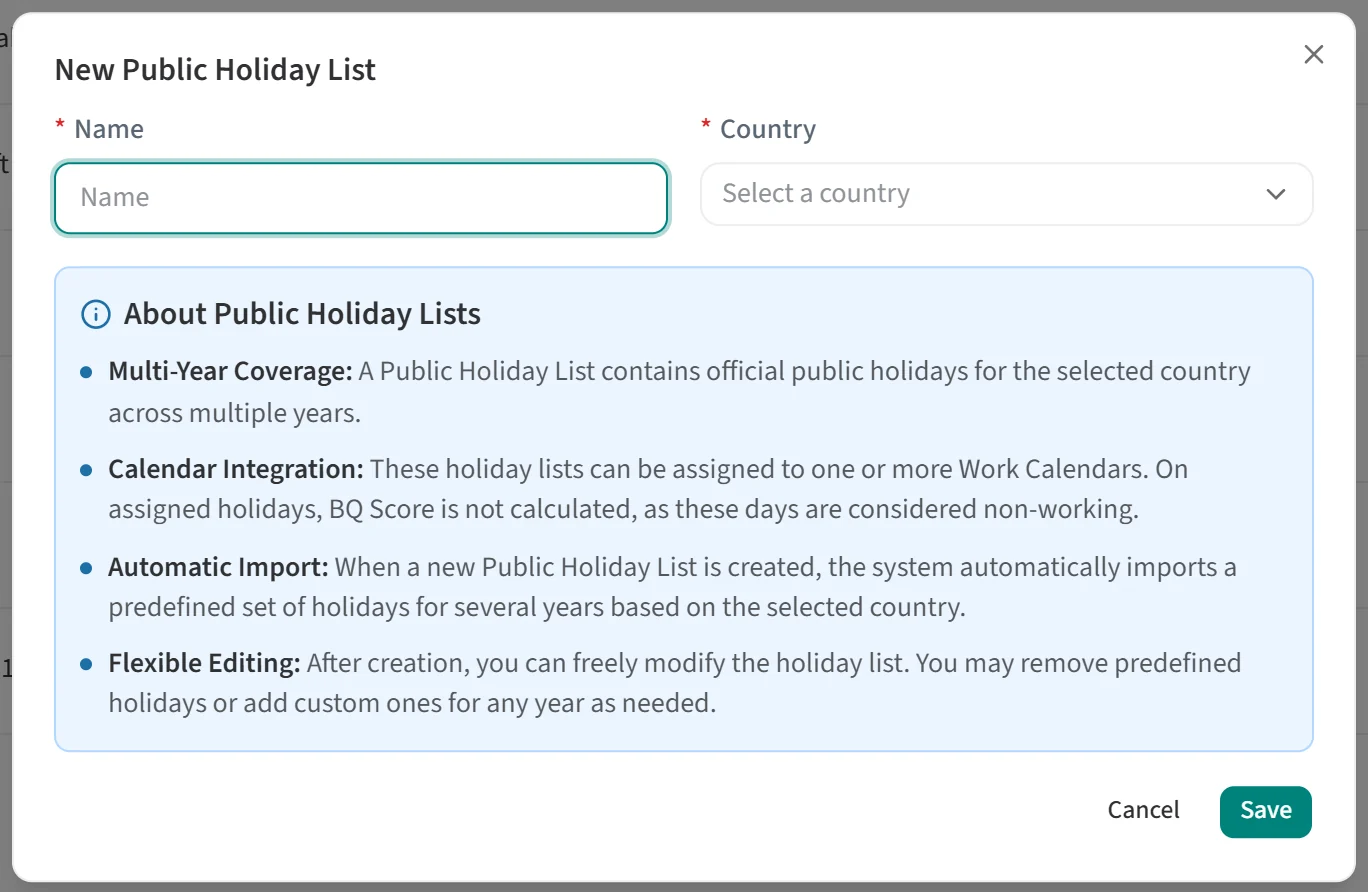
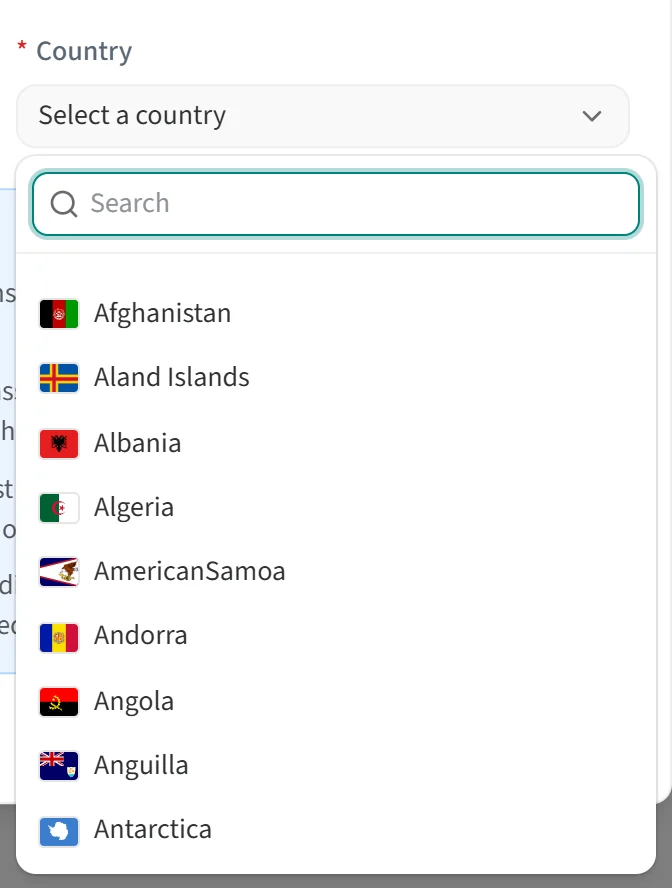
When you click Save, Berqun imports the public holidays of the chosen country for several years into the list. To change the list later, use Edit Holidays in the row’s … menu. There you can step between years with the arrows, add a holiday with Add Holiday, or edit and delete a holiday from its own … menu. A holiday can cover the full day, or be set as a Partial work day that includes some working hours.
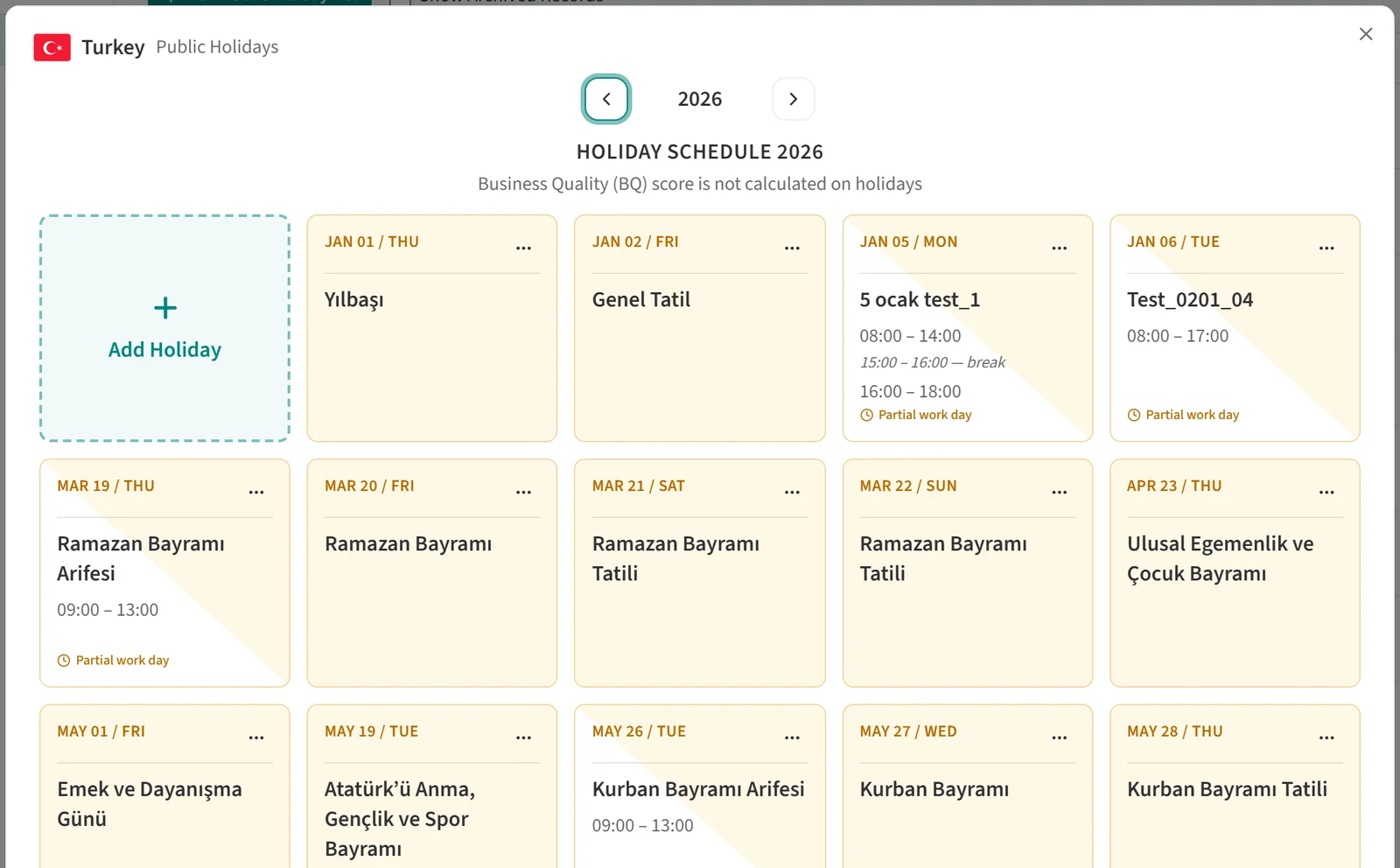
To link the list to a schedule, open the schedule, go to the Public Holiday tab and click Edit. Pick the holiday list from the dropdown and confirm with Save. Linking a new list can trigger a recalculation of past days for everyone assigned to the schedule, so check your choice before saving.
To change the schedule later, see “How to Edit a Work Schedule?”.