
Updating Employee Information and Permissions
To update an employee’s details and give them permissions:
-
On the Staff page, open the ”…” menu on the employee’s row and click “Edit / Assign Role”.
-
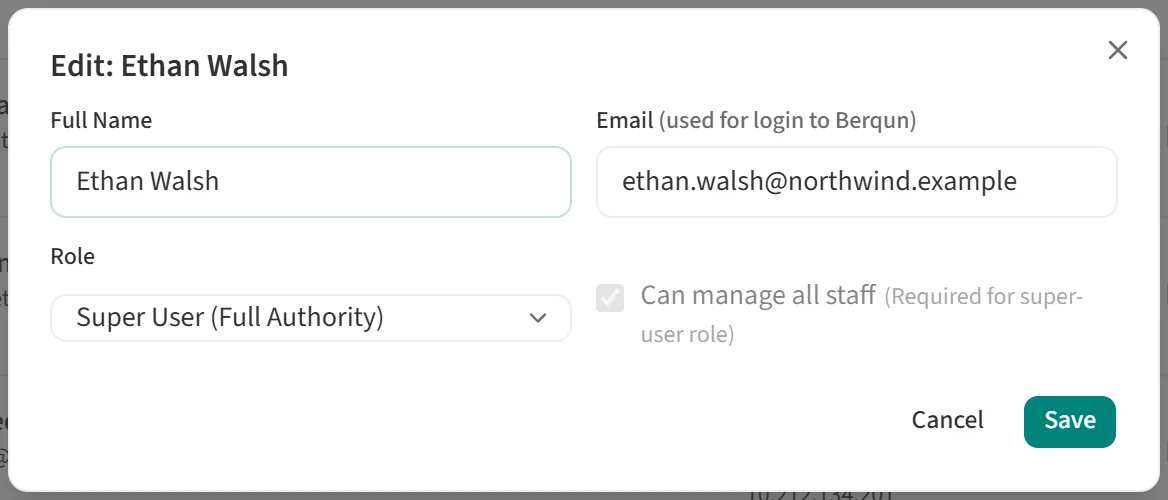
In the “Edit” window, update “Full Name” and “Email” if needed. The employee logs in to Berqun with this email address.
-
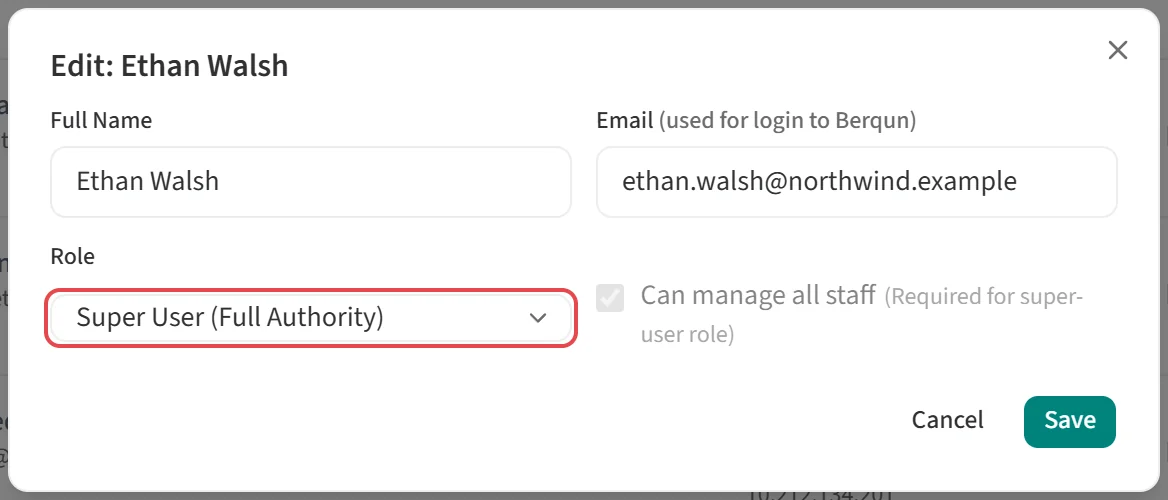
Pick the employee’s role from the “Role” list. The role decides which Berqun screens the employee can open.
-
If the employee should see every staff member’s data, tick “Can manage all staff”. With the super-user role this box is ticked automatically.
-
Click “Save”.
If the employee will manage certain teams rather than all staff, their team assignment decides whose data they can see besides their own. Open “View/Edit Team Assignment” from the row menu and add the employee as a leader of the relevant teams. For details, see How Can I Designate Managers in Berqun?.