
Staff Activity Report
The Staff Activity report lists the activities a selected person spent the most time on in the period you choose. Activities are sorted by total time, longest first.

Getting the report
- Open Reports > Staff Activity in the left menu.
- Under Report Period, choose Daily, Weekly, Monthly or Custom and set the period. A custom range can be at most 30 days.
- Pick the person in the Staff field. The report cannot be downloaded without one.
- Set the Report Options.
- Click Export Excel.
Report Options has BQ Score Calculation and Show Activity Types (Productive and Distracting). This is also where you set Number of Activities (100, 200, 300, 500 or 1000), Minimum Total Duration and Highlight Activity Duration. They work the same way as in the Office Activity report.
Scheduling the report
To have the report sent automatically at regular intervals, click Schedule This Report in the Report Summary card. The Create a New Schedule page opens.
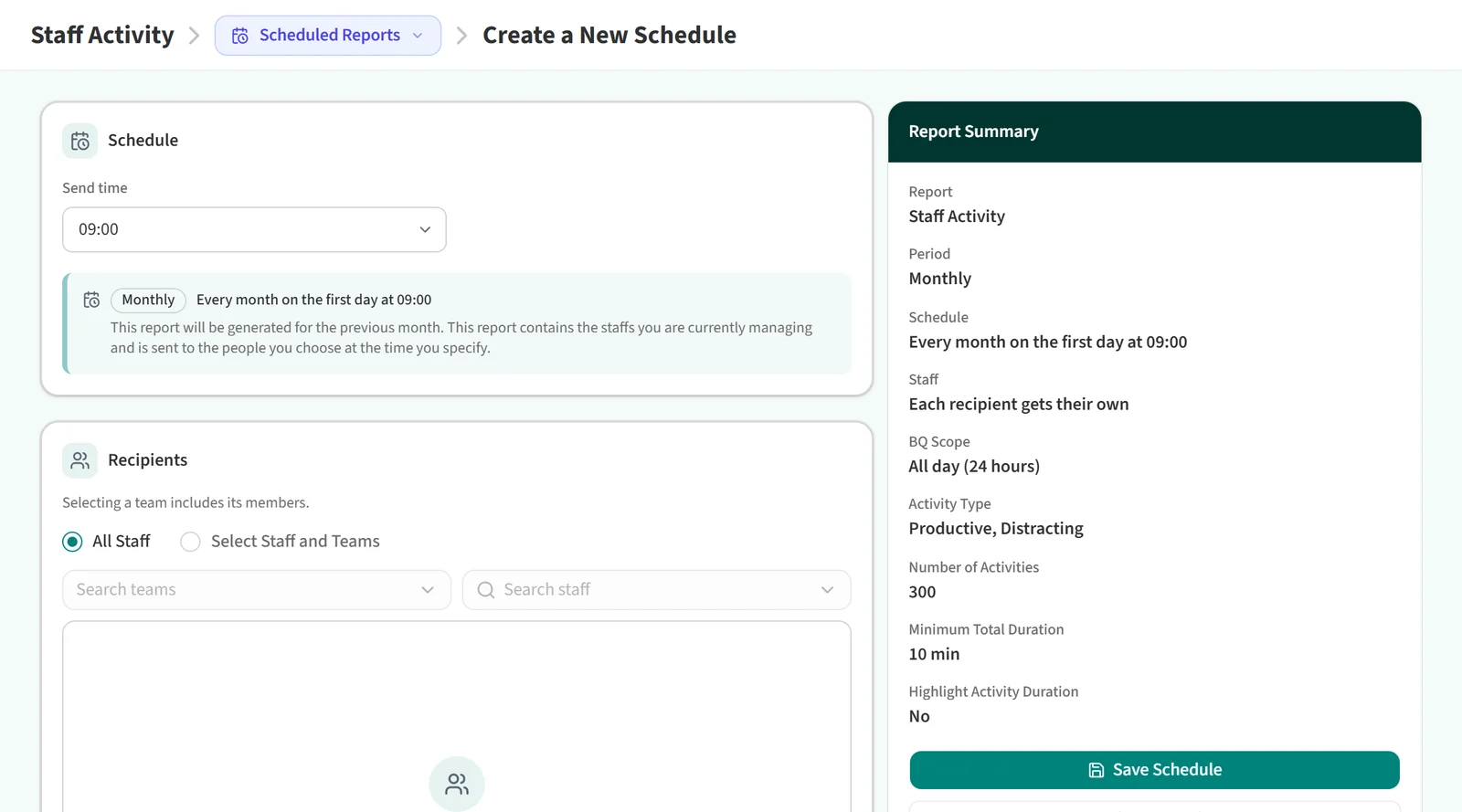
On this page you pick the Send time under Schedule, and under Recipients you choose who receives it: All Staff or Select Staff and Teams. How often the schedule runs comes from the period you chose on the report page; a monthly report, for example, is sent on the first day of each month with the previous month’s data. If you did not pick a person, each recipient gets their own report. When you are done, click Save Schedule.
You may also be interested in: How to Get the Monthly Attendance Report?