
Merging Duplicated Employee Records
Sometimes one employee ends up with more than one staff record. When you merge them, the activity data is collected under one record, and total tracked time and BQ points are recalculated for it.
-
In “People / Authorization”, open the Staff page and click “Duplicate record fix” above the list.

-
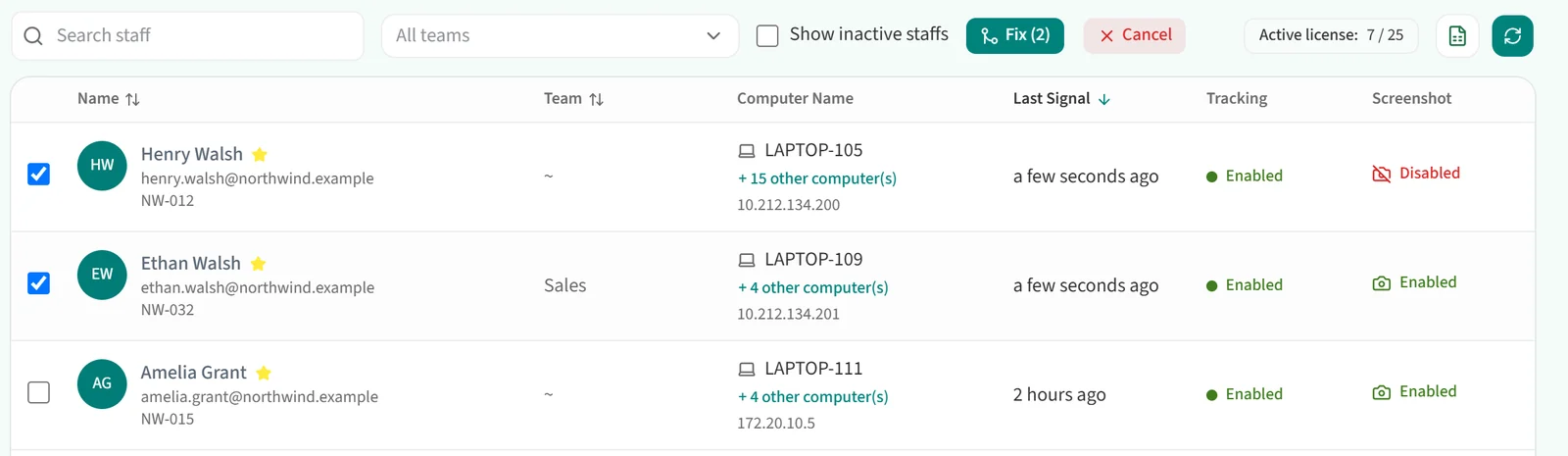
Checkboxes appear at the start of each row. Tick the records that belong to the same person. You need to select at least two.
-
Click “Fix”. The number on the button shows how many records you have selected. To back out, click “Cancel”.

-
The “Fix duplicate records” window lists the selected records with their team, email, employee ID, computer, login name and tracked duration. Choose the primary record to keep. Berqun preselects the one with the longest tracked duration. The other records are merged into it.
-
Click “Fix” to start the merge.
A merge cannot be undone. It runs in the background, and total tracked durations and BQ points are updated shortly afterwards.
To edit an employee’s details, see Updating an Employee Profile.