
Initial Account Registration and Setup
This article walks you through creating your Berqun account and completing the initial setup.
Step 1: Create your account
Click “Try for Free” on our website. In the form, enter your full name, company name, work email, phone number and a password, then type the password again in “Confirm password”. Accept the Terms of Service and click “Start Free Trial” to create your account.
We then send a verification email to the address you signed up with. Click the link in that email to confirm your address. You can sign in before you do, but Berqun reminds you at every sign-in until your address is verified. If the email does not arrive, check your spam folder.
The trial lasts 7 days and does not need a credit card.
Step 2: Get to know Berqun
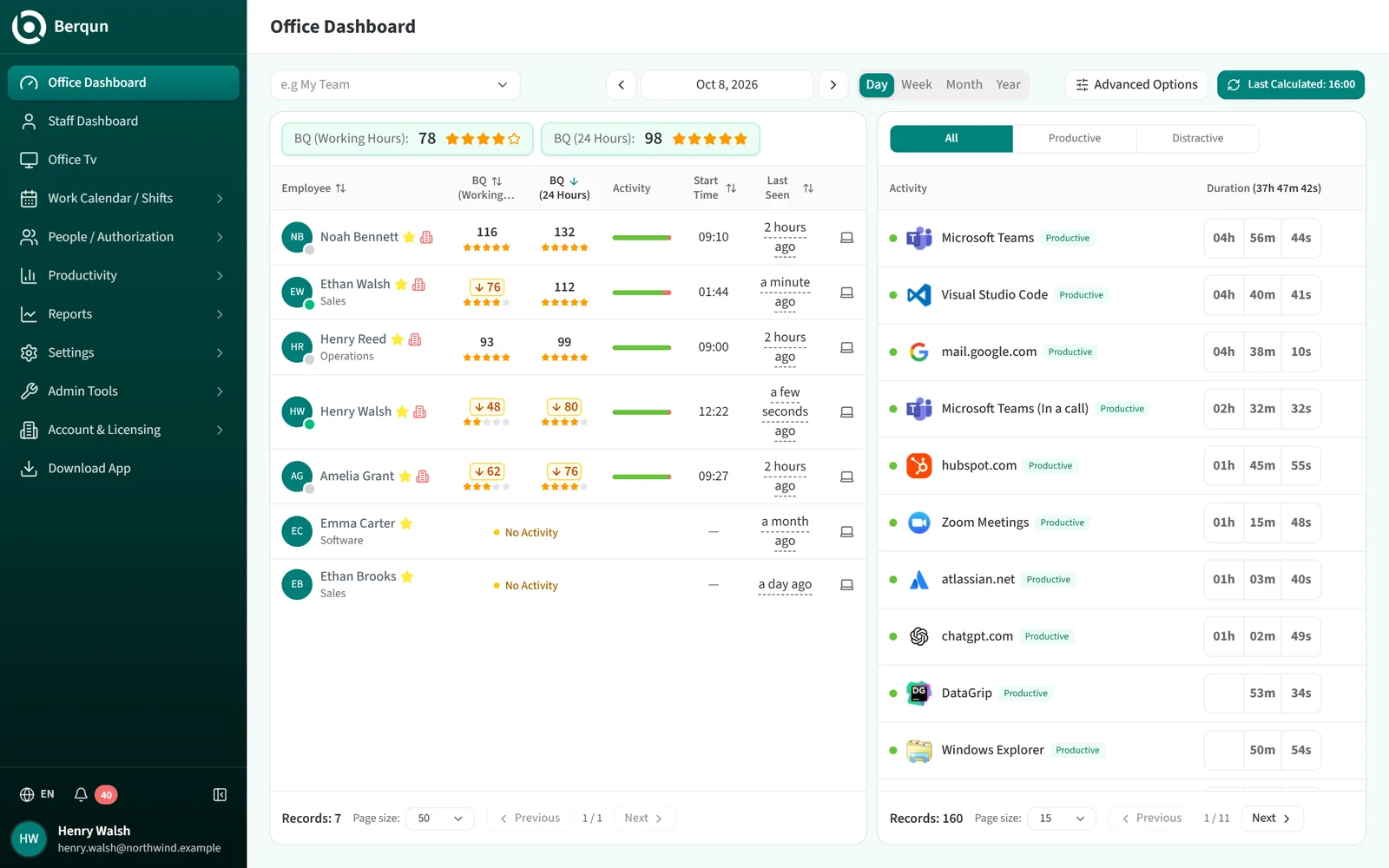
The “Office Dashboard” in the left menu shows your employees’ BQ scores, activity status and start times, along with the applications and websites used most. This data comes from the computers where the agent is installed.
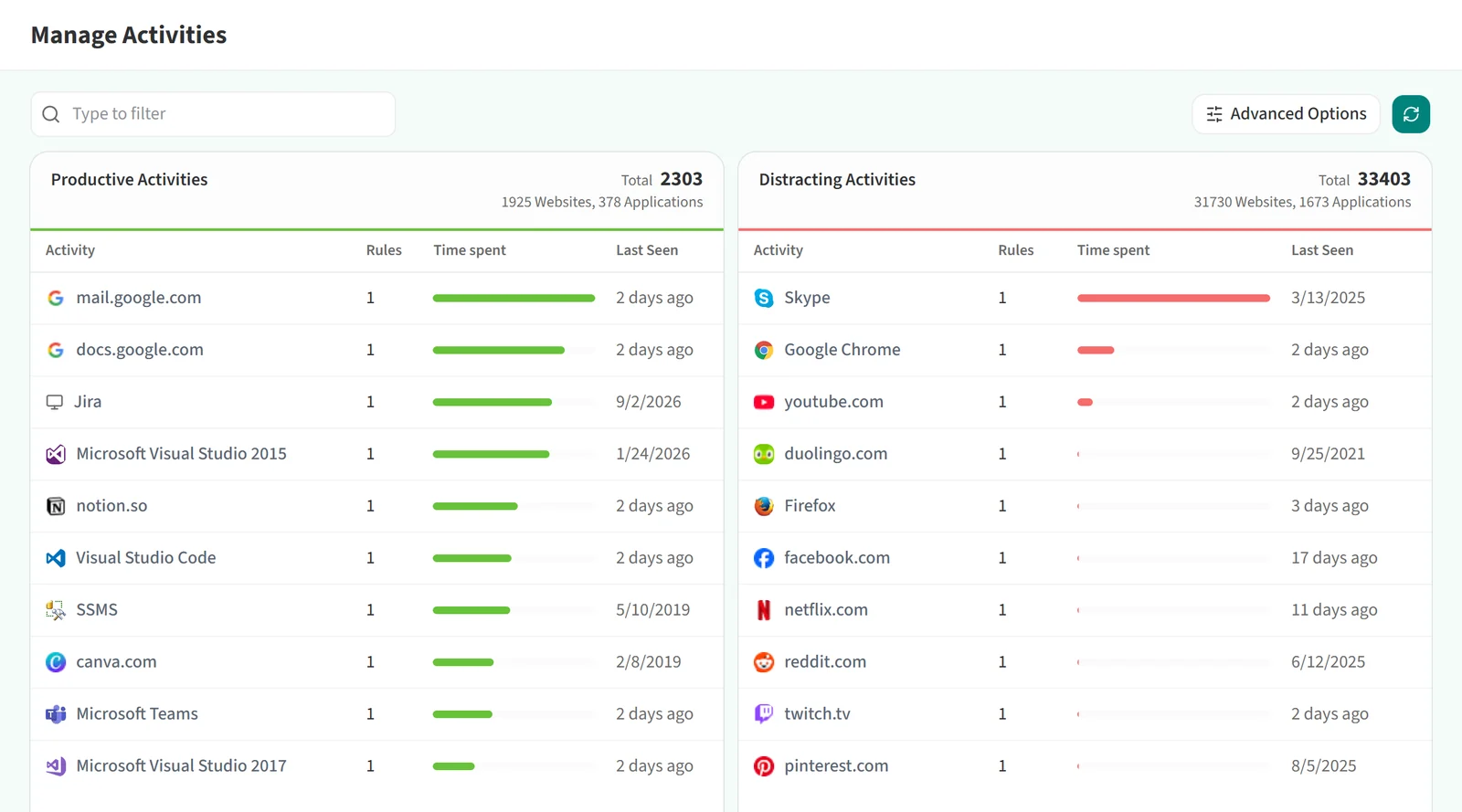
You decide which applications and websites count as productive on the “Manage Activities” page under “Productivity”. The page shows the “Productive Activities” and “Distracting Activities” lists side by side.
Step 3: Download the Berqun agent
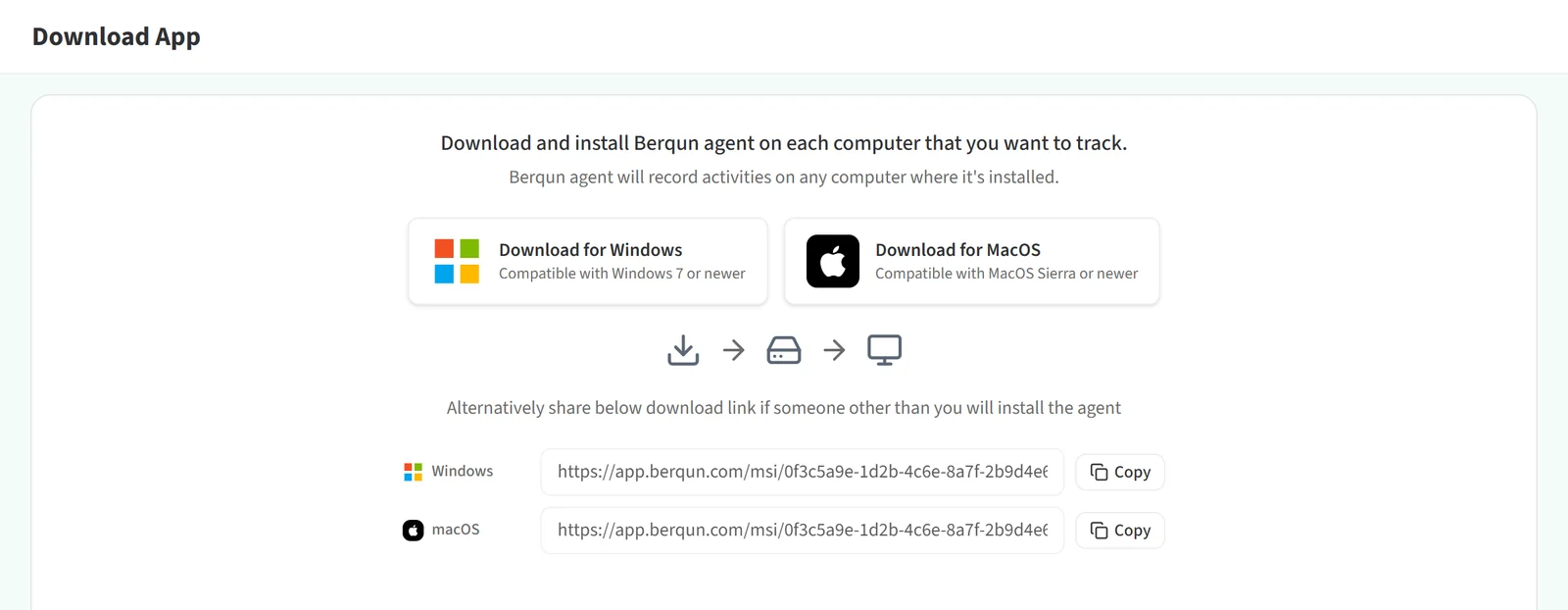
Open “Download App” from the left menu. Click “Download for Windows” or “Download for MacOS”, depending on your computer’s operating system, to start the download.
To continue with the installation, see “Installing the Berqun Agent”.