
How to Configure BQ Score Calculation Settings
The BQ Score is Berqun’s main productivity measure. It is calculated from how long staff spend on activities and whether those activities count as productive or distracting.
To change how it is calculated, go to Settings in the left menu and open BQ Score. The page has three settings. After making changes, click Save changes.
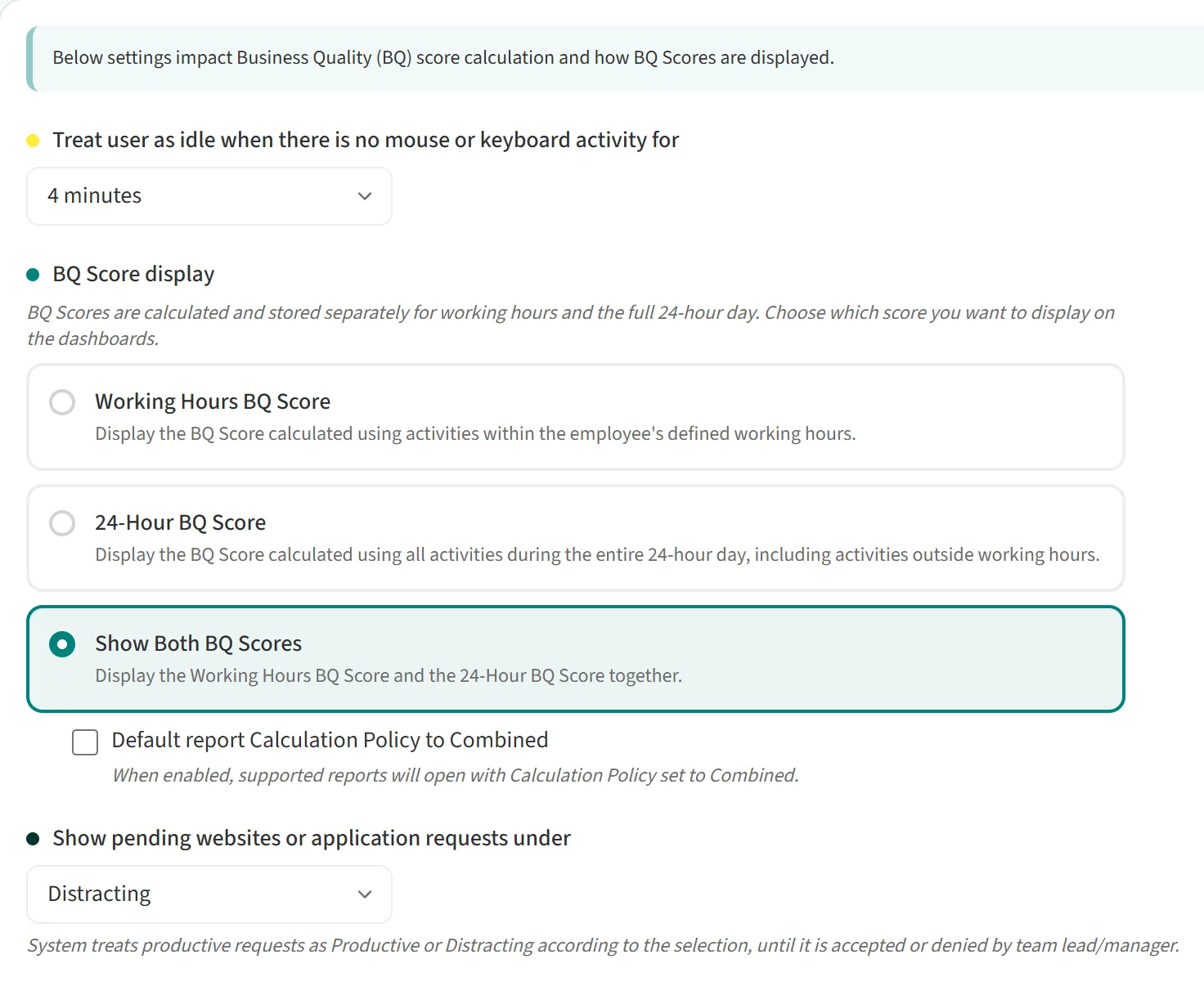
Idle threshold
If a user does not touch the mouse or keyboard for a set time, Berqun treats that time as idle. Choose the time, from 1 to 5 minutes, in Treat user as idle when there is no mouse or keyboard activity for.
BQ Score display
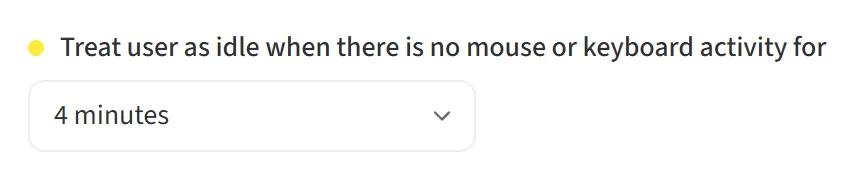
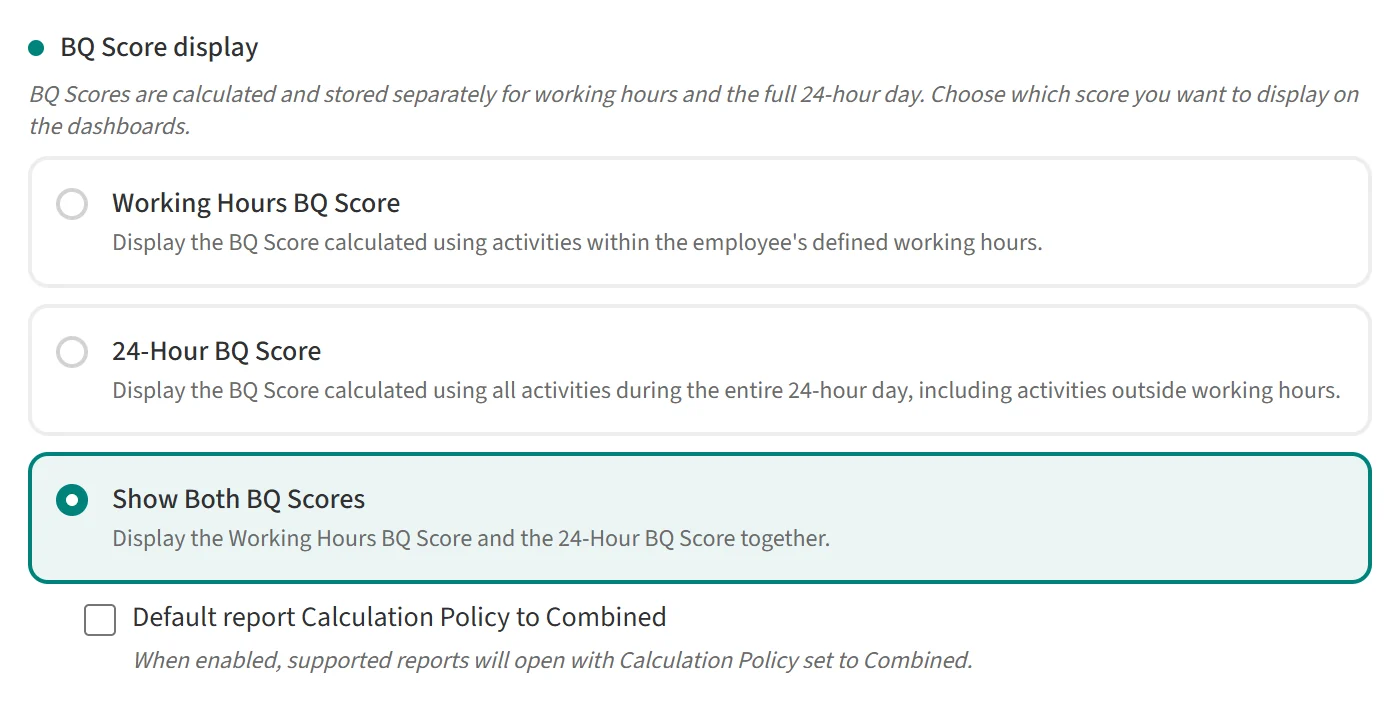
Berqun calculates and stores the BQ Score separately for working hours and for the full 24-hour day. Under BQ Score display you choose which one the dashboards show:
- Working Hours BQ Score: only activities within the employee’s defined working hours count.
- 24-Hour BQ Score: all activities during the whole day count, including those outside working hours.
- Show Both BQ Scores: both scores are shown together.
When Show Both BQ Scores is selected, the Default report Calculation Policy to Combined checkbox appears below it. If you tick it, reports that support this option open with the calculation policy set to Combined.
Pending website and application requests
When someone sends a productivity request for a website or application, Show pending websites or application requests under decides how that activity counts until a team lead or manager accepts or denies it. With Productive, pending requests count as productive time. With Distracting, they count as distracting time.
