
Employee List
The Staff page lists every employee whose computer runs the Berqun agent and whose productivity is tracked.
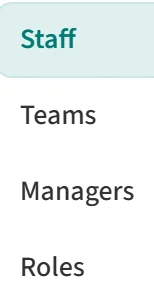
To open it, click “People / Authorization” in the left menu. The submenu shows the Staff, Teams, Managers and Roles pages. Choose Staff.
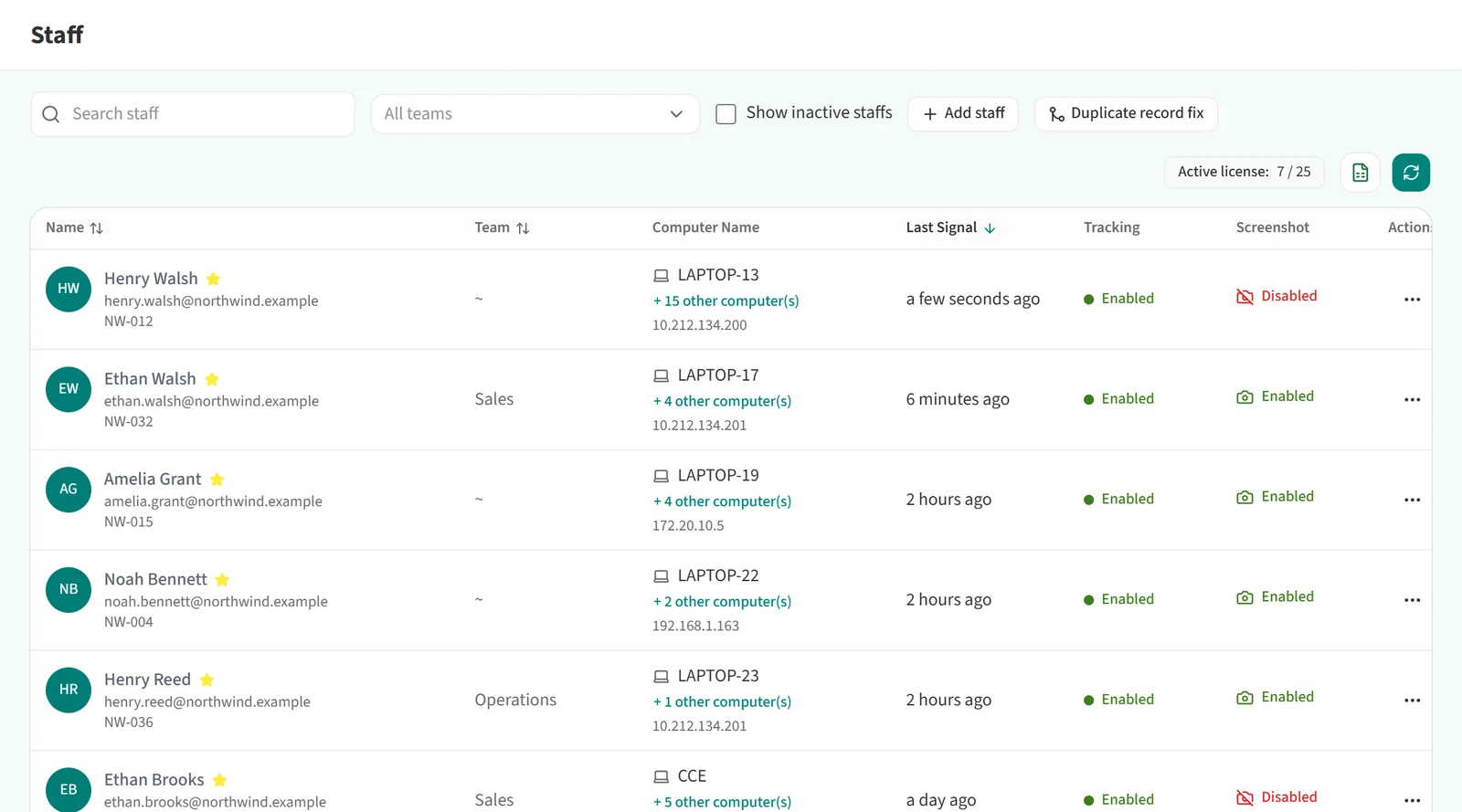
For each employee the list shows:
- Name: full name, email address and employee ID. A star next to the name means the person is a manager.
- Team: the team the employee belongs to.
- Computer Name: the computer the employee uses and its IP address. If the person uses more than one computer, a ”+ n other computer(s)” link appears below it.
- Last Signal: when the agent last sent a signal.
- Tracking and Screenshot: whether tracking and screenshot capture are enabled or disabled for this person.
- Actions: the ”…” menu on the row. See Employee List Actions.
Above the list you can see how many licenses are in use (“Active license”). The buttons next to it export the list to Excel and refresh it.
The “Add staff” button does not open a form. A staff record is created automatically the first time the Berqun desktop agent connects to your firm, so to add an employee you install the agent on their computer. You can get the installer from the “Download App” page in the left menu.
For ways to find a particular person, see Employee List Search Options.