
Installing the Berqun Agent
Once your account is set up, install the Berqun agent on each computer you want to track. The agent records activities on the computer where it is installed.
Step 1: Download the agent
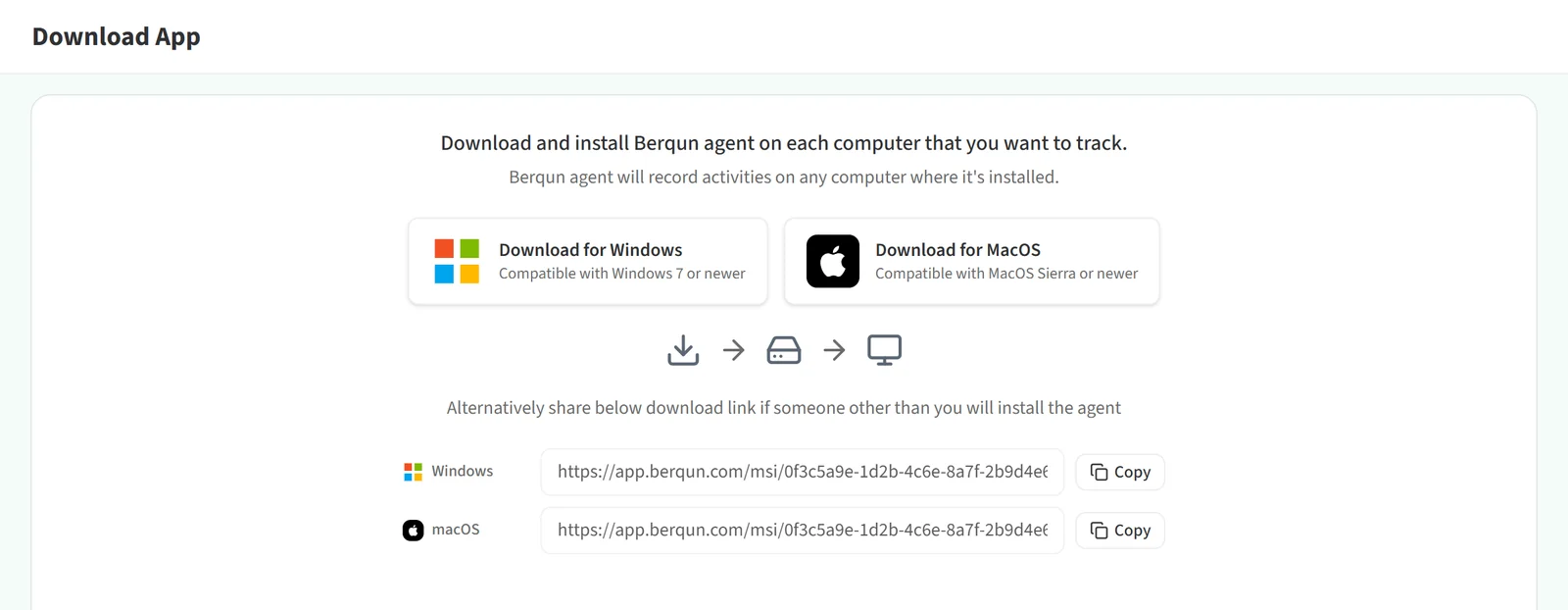
Open “Download App” from the left menu. Click “Download for Windows” (Windows 7 or newer) or “Download for MacOS” (MacOS Sierra or newer), depending on your computer’s operating system.
If someone else will install the agent on another computer, copy the download link in the “Windows” or “macOS” row at the bottom of the page with the “Copy” button and share it with them. Opening the link on that computer starts the download.
Step 2: Install and check the agent
On Windows, once the download finishes, double-click the “Berqun Setup” file to start the installation.
When setup is complete, close the wizard with “Finish”.

By default the Berqun agent is installed in hidden mode. If you do not want it hidden, you can control this from Task Manager.
The agent runs on the operating system as a main program (Netl.exe) and a controller (Srvc.exe). If the main program is not running, the controller starts it again automatically.