
Team Calendars
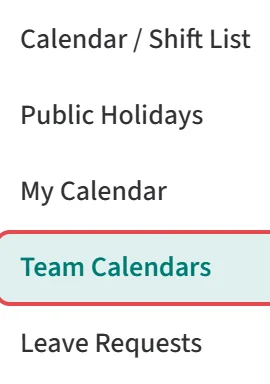
The Team Calendars page shows a month of the calendar of everyone you manage in one table. To open it, click Team Calendars under Work Calendar / Shifts in the left menu. For your own calendar, use My Calendar in the same menu.
Each row is a person and each column a day of the month. Under Total, the Work days and Leaves columns give the person’s number of work days and leave days in that month.
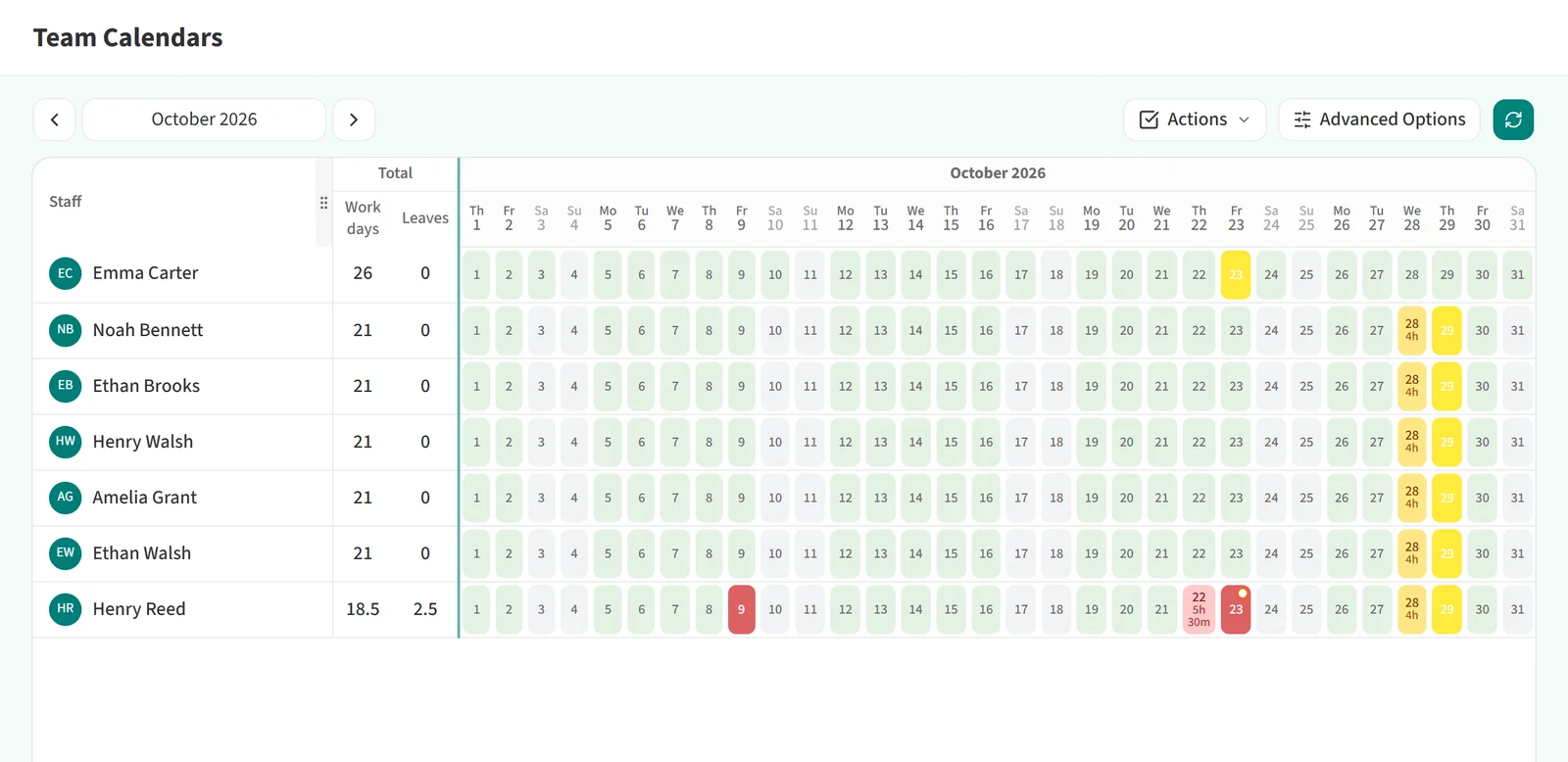
From the top of the page you can:
- Move to the previous or next month with the arrows on either side of the month name.
- Filter the list by team or person with Advanced Options. Your choices take effect when you click Apply Filters.
- Use the Actions menu to enter leave or workday changes for several days and people at once.
Clicking a day opens the Edit Workday dialog, where you see and change that one day’s status, leave and work location.
Colours
The colour of a cell shows the day’s status. To see what each colour means, click Legend at the bottom right of the table:
- Full-Day Leave: dark red.
- Hourly Leave: light red. The cell also shows the leave duration.
- Public Holiday: yellow. On holidays set as a partial work day, the cell shows the working time.
- Weekend / Not a Working Day: grey.
- Working Day: light green.
A cell can also carry one of two corner indicators. An orange ring means Pending Approval: the person has requested leave that has not been approved yet. A black corner means Edited / Customized Day: the day’s status or hours have been changed by hand and differ from the work schedule.
For more on each status and how to enter it, see “Day Statuses on the Team Calendar”.