
Viewing by Time Range
You can view the Office Dashboard for a day, a week, a month or a year. The period you choose changes the BQ scores, the average boxes, the attendance details and the activity list together.

You choose the period in the middle of the toolbar:
- Click Day, Week, Month or Year to set the period type.
- Use the arrows on either side of the date field to move to the previous or next period.
- To pick a specific period, click the date field and choose from the calendar that opens. Future dates cannot be selected.
Daily view
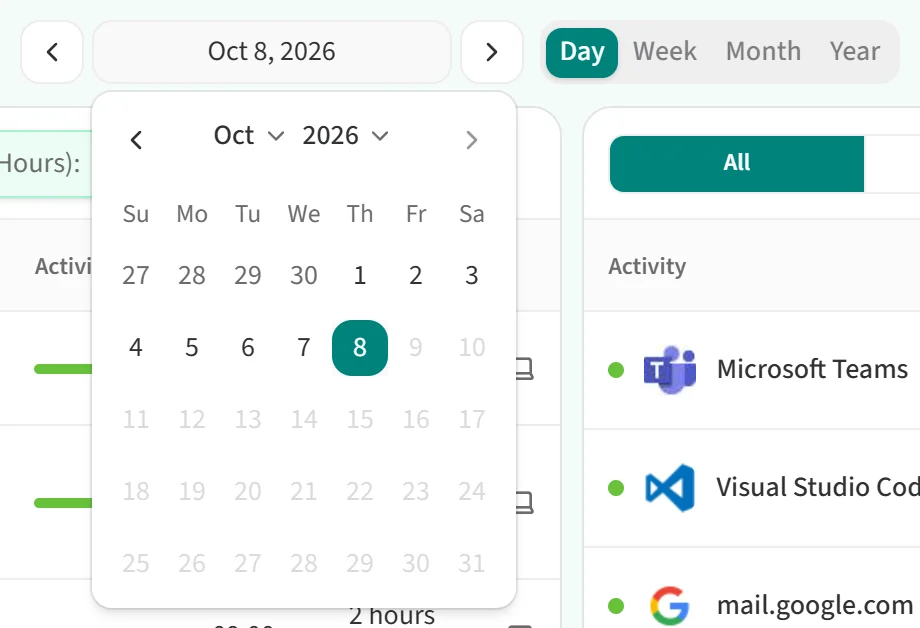
With Day selected, clicking the date field opens a month calendar. Use the month and year lists at the top to go back to earlier months, then click the day you want.
Weekly view
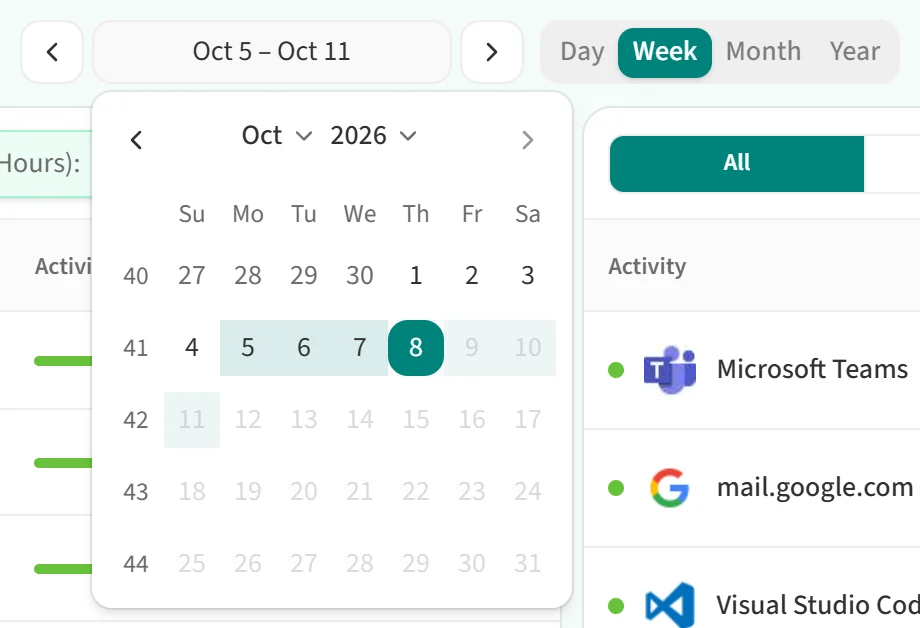
With Week selected, the calendar also shows week numbers. Clicking a day selects the week it belongs to, and the date field shows the first and last day of that week.
Monthly view
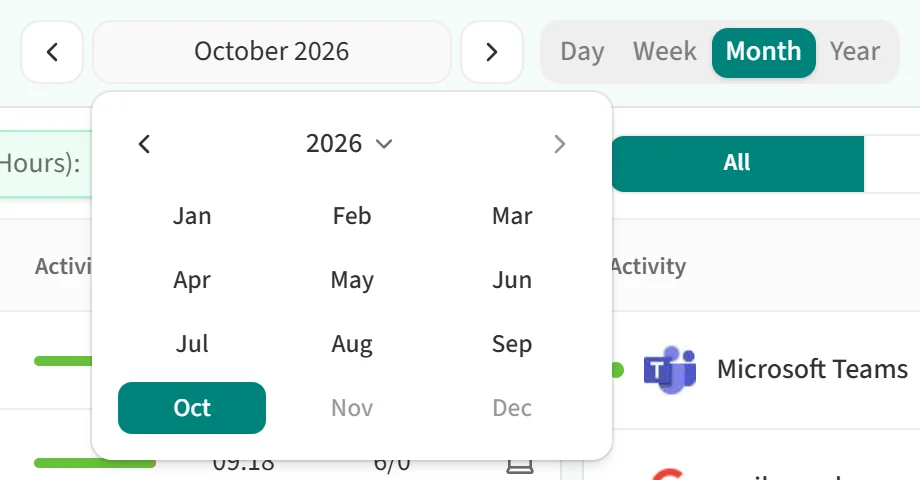
With Month selected, the calendar lists the months. Change the year at the top, then click the month you want.
Yearly view
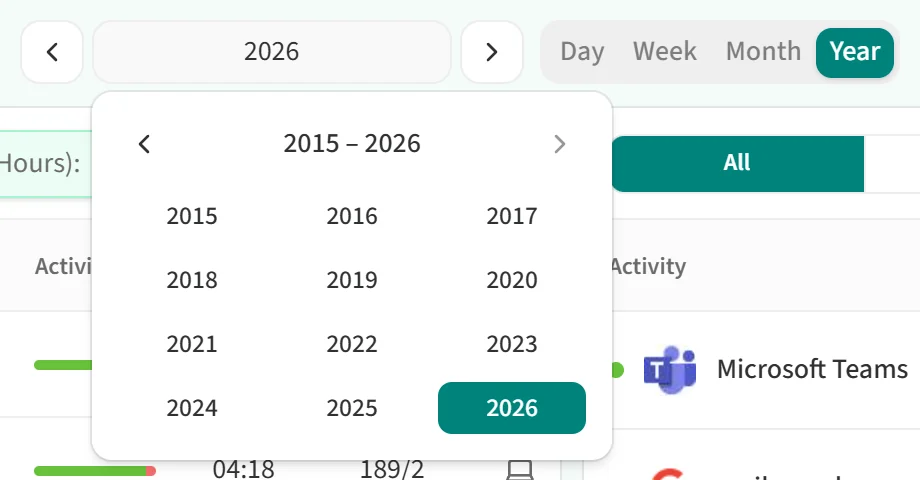
With Year selected, the calendar lists years. Use the left arrow to go further back.
In the weekly, monthly and yearly views, the last column of the employee table is Days worked/off. See Attendance Status for details.