
Daily Working Hours Time Bar
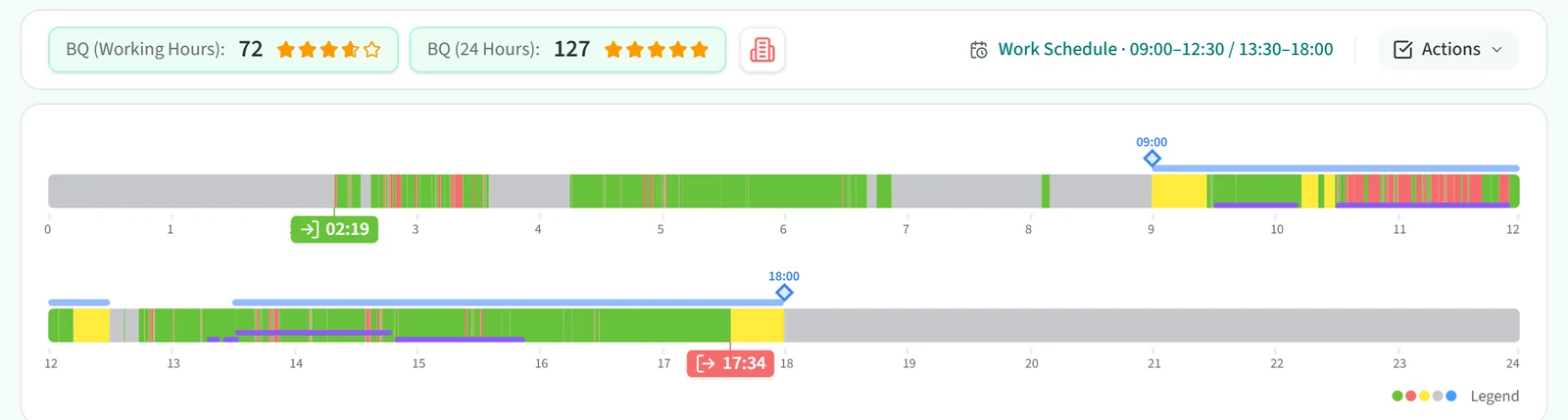
With the Day view selected, the Staff Dashboard shows two time bars below the summary row. The top bar covers 00:00 to 12:00 and the bottom bar covers 12:00 to 24:00.
Colours
- Green: productive time.
- Red: distracting time.
- Yellow: time inside working hours with no activity on the computer.
- Grey: time outside working hours.
- Blue: time added through a request that is still pending approval.
The Legend button at the bottom right of the bars lists these colours.
Markers and lines
- The blue line above the bar shows the Scheduled Working Hours. The planned start and end times are written at its ends (for example 09:00 and 18:00).
- The time labels below the bar are the employee’s actual start and end times. A label is green when the employee kept to the schedule. It turns red when the employee started late or finished early, and hovering over it also shows the planned time.
- The thin coloured lines below the bar show calendar events, online meetings, phone calls and manual time entries. In the Legend window you can show or hide them with the Calendars, Online Meetings, Phone Calls and Manual Time Entries check boxes. Hourly leave also appears on the schedule line as Partial Leave.
Clicking a part of the bar opens a window listing the applications and sites used in that time range.
Work Schedule and Actions
Work Schedule in the summary row shows the planned working blocks for the day. Click it to see the plan in detail, the expected and actual start and end times, and the Expected Productive Hours.
Depending on your permissions, the Actions menu contains:
- Export Audit Data: exports audit data for that day, such as the employee’s keyboard and mouse logs.
- Edit Working Day: opens the employee’s day in the work calendar.
- Add Time Entry: adds a manual time entry for that day.