
Day Statuses on the Team Calendar
The Team Calendars page under Work Calendar / Shifts in the left menu shows the monthly calendar of the people you manage. The colour of each day shows its status. The colours are also listed under Legend at the bottom right of the table.
Entering a status
To change a single day, click it in the table. The Edit Workday dialog opens and offers options that depend on the day’s current status, such as setting leave on a working day, editing or removing leave, or converting a non-working day into a working day.
To apply the same change to several days or people, open the Actions menu at the top of the page. Under Apply to multiple days it offers:
- Add Leave: enters leave for the person you choose over a date range.
- Edit Working Days: makes the chosen days working days or changes their hours.
- Set Non-Working Days: makes the chosen days non-working days.
- Remove Records…: removes leave or day changes entered earlier.
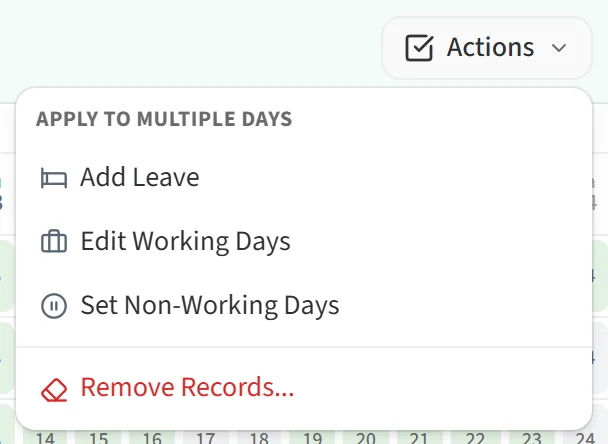
Each option opens a step-by-step dialog. You choose the person first, then the date range. The menu shows only the options your role is allowed to use.
Full-day and hourly leave

Approved leave shows in red: full-day leave in dark red, hourly leave in light red. This is leave the person requested and a manager approved, or leave a manager entered directly for the person. It affects the calculations:
- On days with full-day leave, no expected work duration is calculated and the day is left out of the weekly, monthly and yearly averages.
- On days with hourly leave, the working hours and expected productive time outside the leave are taken into account.
- A manager can change approved leave by clicking the day and choosing Edit Leave or Remove Leave.
Leave awaiting approval

Leave that a person has requested but nobody has approved yet is marked with an orange ring in the corner of the cell. Until it is approved, the existing calculations for those days stay as they are.
A manager can click the day and settle the request with Confirm or Decline. The same requests are also listed on the Leave Requests page.
Public holiday

Public holidays show in yellow. They come from the public holiday list linked to the person’s work schedule. On a full-day holiday no work is expected and no BQ score is calculated. On a holiday set as a partial work day, work is expected for the hours entered in the holiday list.
Working day

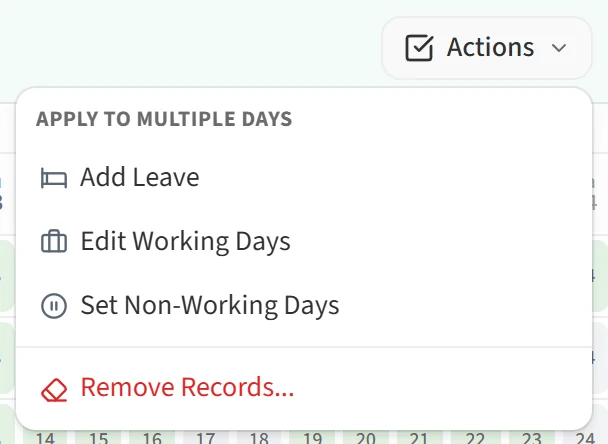
Light green days are the days the person’s work schedule expects them to work. If someone will work on a day that is normally off, such as a weekend, you can turn it into a working day. For one day, click it and choose Convert to Working Day. For several days, use Edit Working Days in the Actions menu. Days changed by hand get the Edited / Customized Day indicator in their corner.
Weekends and non-working days

Grey days are days the person is not expected to work: the days off in their work schedule and days made non-working by hand. To make a working day non-working, use Set Non-Working Days in the Actions menu. To undo a manual change, click the day and choose Restore to Working Day.