
How to Generate Office Productivity Reports?
The Office Productivity report lets you look at productivity across your workplace, team by team. Open it from Reports > Office Productivity in the left menu.
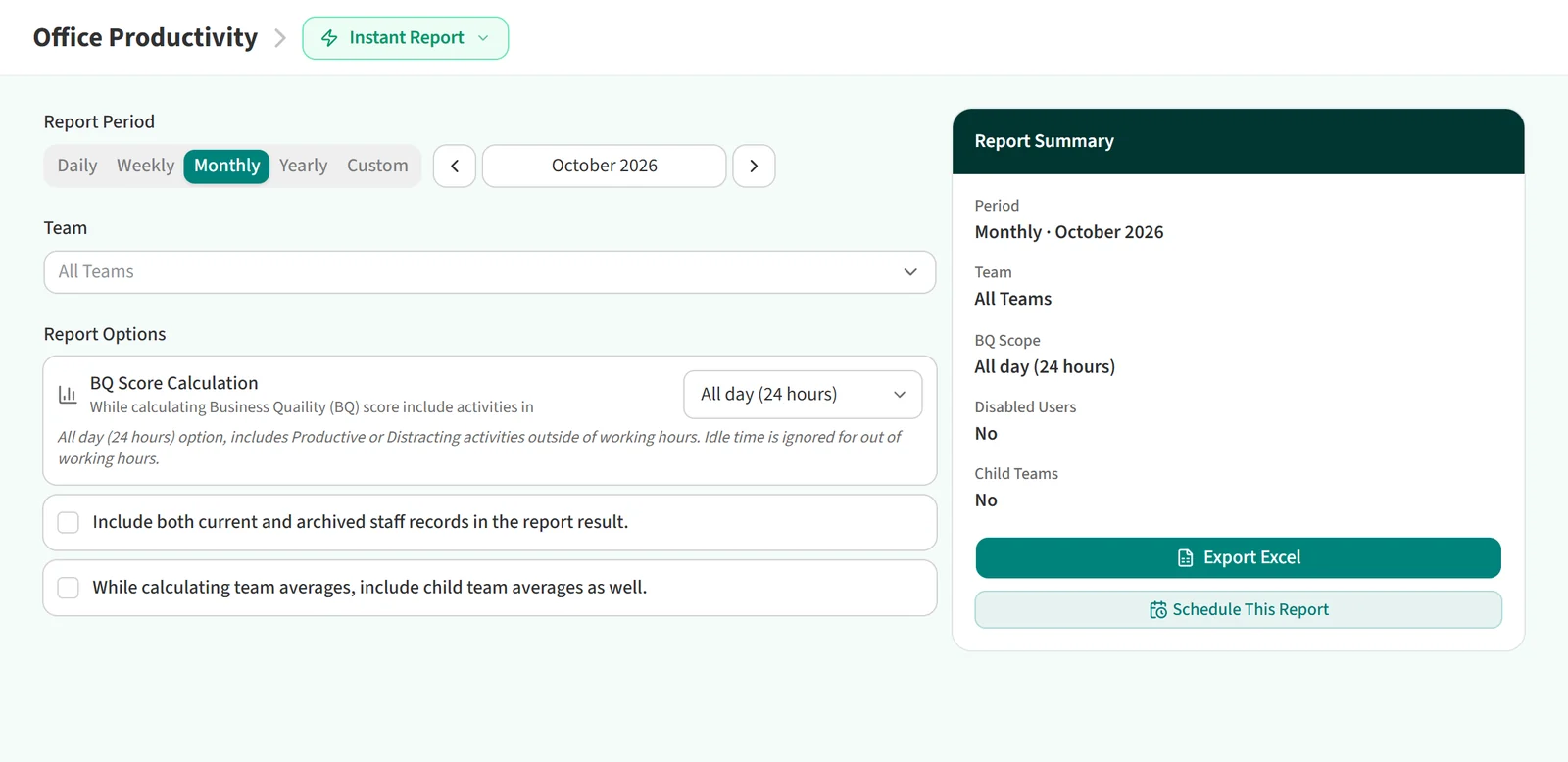
Report period
Under Report Period, choose Daily, Weekly, Monthly, Yearly or Custom. For the fixed periods, the arrows next to the date move to the previous or next period. With Custom you enter a start date and an end date.

Team selection
In the Team field you can pick one or more teams. The list shows teams as a tree with their sub-teams and staff counts, and you can type a team name in the search box to find it.
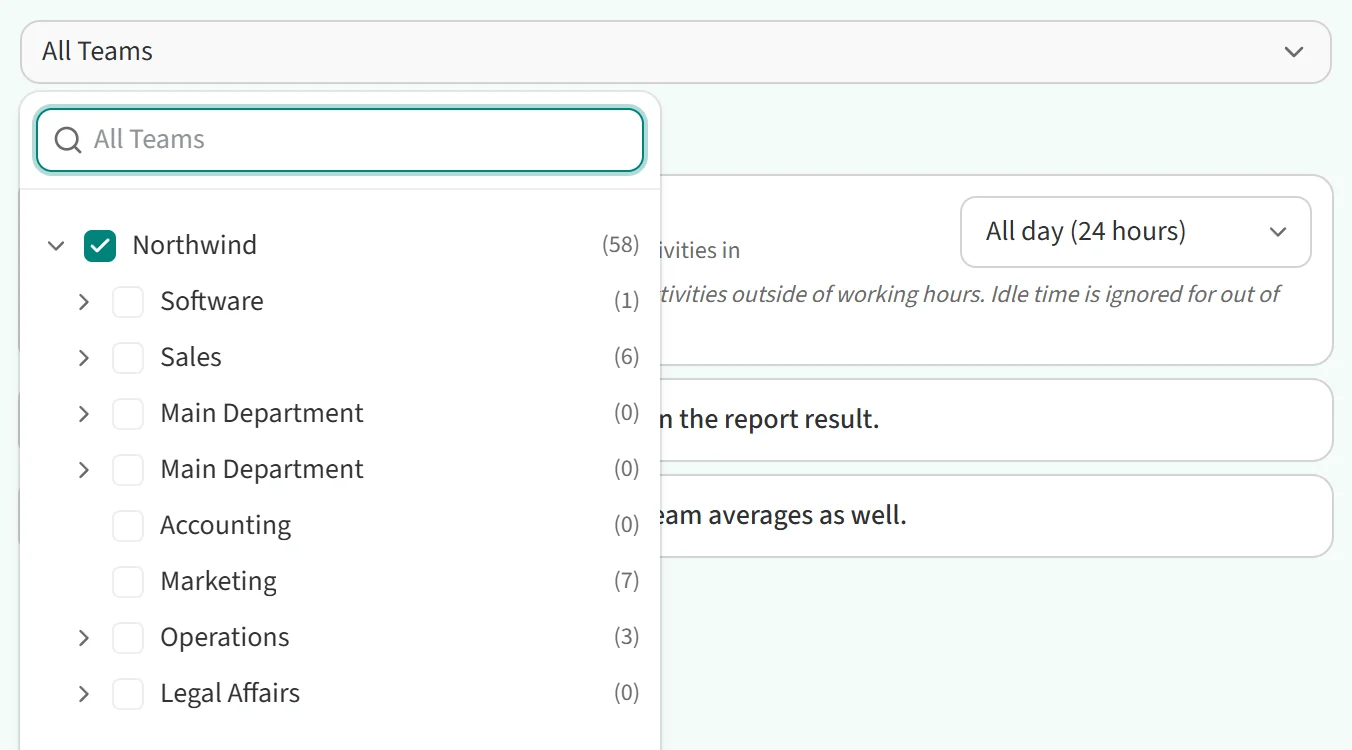
If you leave the field at All Teams, the report covers all staff. When you pick teams, only the staff in those teams are included.
Report options
Report Options has two checkboxes:
- Include both current and archived staff records in the report result. adds staff who are no longer tracked, for example people who have left the company.
- While calculating team averages, include child team averages as well. counts sub-team data in the team averages.
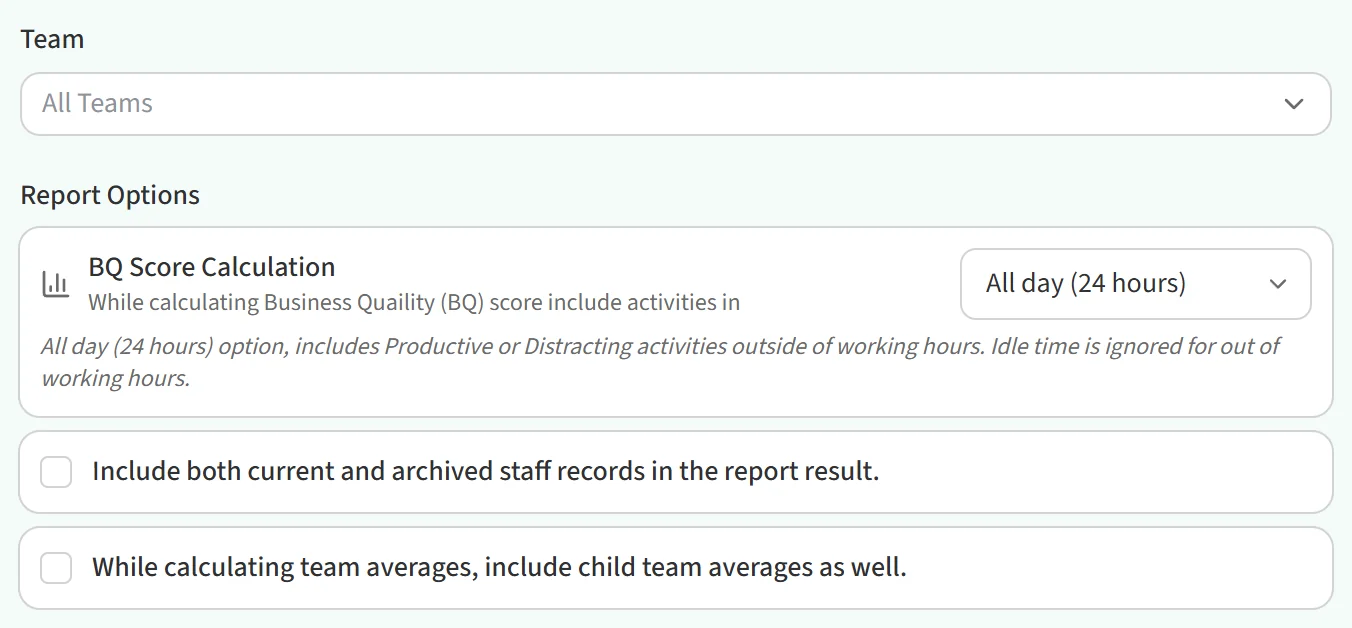
BQ Score Calculation sets which activities count toward the BQ score. There are three options: Combined, All day (24 hours) and Working hours only.

All day (24 hours)
Counts everything the employee did during the day, including productive and distracting activity outside working hours. Idle time outside working hours is ignored.

Working hours only
Calculates the score from the employee’s working hours in the selected period only.

Combined
Shows the difference between the two calculations, so you can also see the effect of activity outside working hours.

Downloading the report
The Report Summary card on the right lists the period, teams and options you chose. Click Export Excel to download the report. To have it emailed on a regular basis, use Schedule This Report. See Where Can I See Scheduled Reports? for details.
You may also be interested in: How to Generate Staff Productivity Reports?