
Things to Watch When Editing Workdays
When you create or edit a work schedule, each day appears as a card in the Workdays section of the Work Detail tab. The card shows the day’s working hours and its Expected Productivity. Days nobody works sit in the Days Off section, and no BQ score is calculated on them.
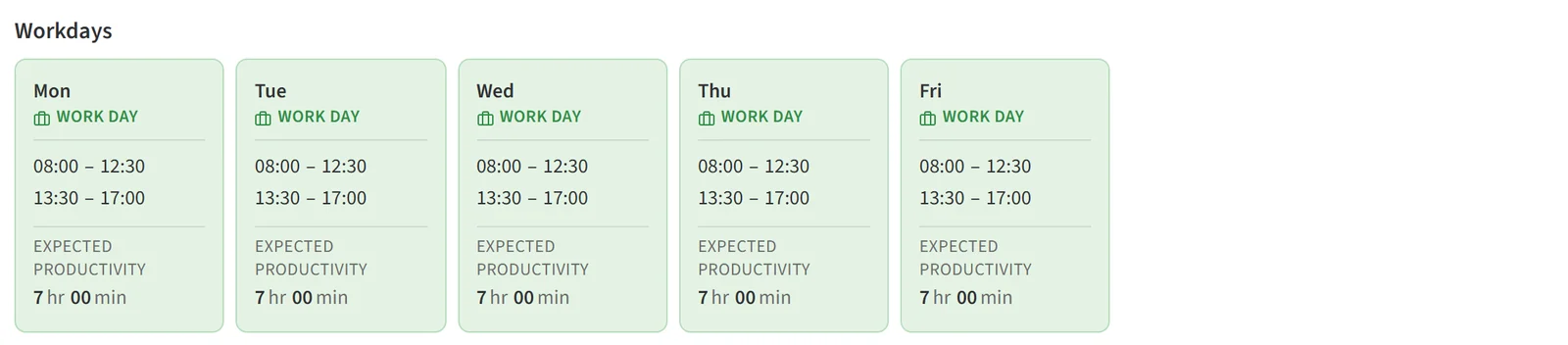
The card menus only work while you are editing. On an existing schedule, click Edit at the top right first. Then the … button on a day card offers:
- Edit Work Day: opens the dialog where you set the day’s hours.
- Mark as Day Off: moves the day to Days Off.
- Mark as Work Day: shown on day-off cards; turns the day back into a workday.
Entering working hours
Edit Work Day opens the Set Work Intervals dialog. Its title shows which day you are editing.
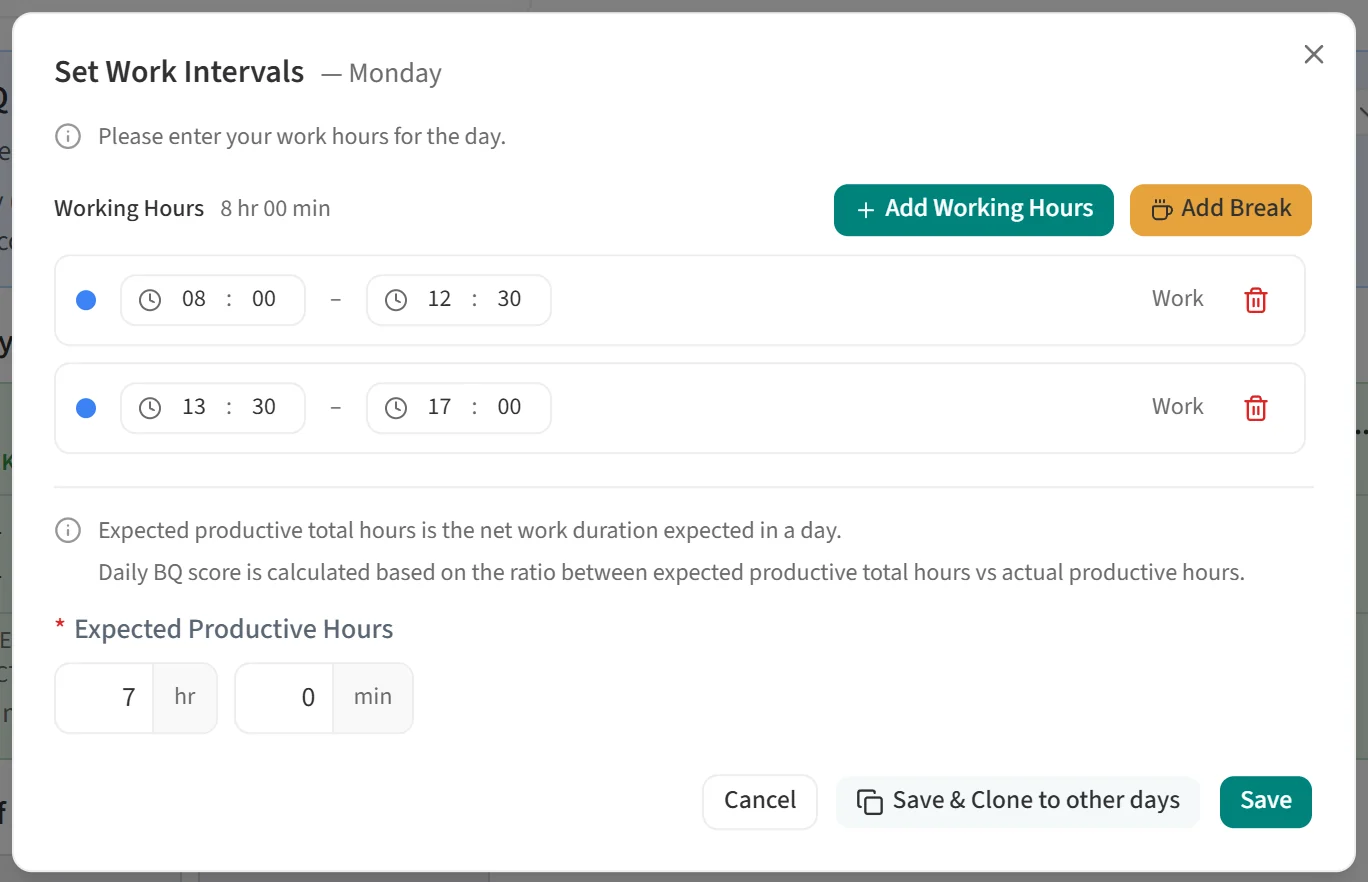
Add Working Hours adds a new work interval and Add Break adds a break. You can define several intervals in one day, for example 08:00-12:30 and 13:30-17:00. To delete an interval, click the bin icon at the right of its row.
The total length of the intervals appears next to Working Hours. Intervals cannot overlap, and their total must be more than zero.
Expected productive hours
Expected Productive Hours is the net work duration expected from the person on that day. The daily BQ score is calculated from the ratio between this figure and the productive hours actually worked. The value must be greater than zero and cannot exceed the total of the working hours you entered. In the example shown, 7 hours are expected on an 8-hour day.
Saving
Save updates only the day you are editing. Save & Clone to other days applies the same hours and expected duration to the schedule’s other workdays as well.
After the dialog closes, also click Save at the top of the page so the changes are written to the schedule.