
How to Get the Monthly Overtime Report?
The Monthly Overtime report shows your staff’s total working days, holidays, average working days and average holidays. You can run it for a week, a month, a year or a custom date range.
Next to the day counts, the report shows overtime averages and totals for working days, holidays and all days. All Days Avg is the overtime of all days divided by the number of days in the period. The Total row at the bottom adds up every row, including the average columns.

Getting the report
- Open Reports > Monthly Overtime in the left menu.
- Under Report Period, choose Weekly, Monthly, Yearly or Custom and set the period. A custom range can be at most 30 days.
- Pick teams in the Team field. If you leave it empty, it stays at All Teams.
- Tick the options you want under Report Options.
- Click Export Excel.
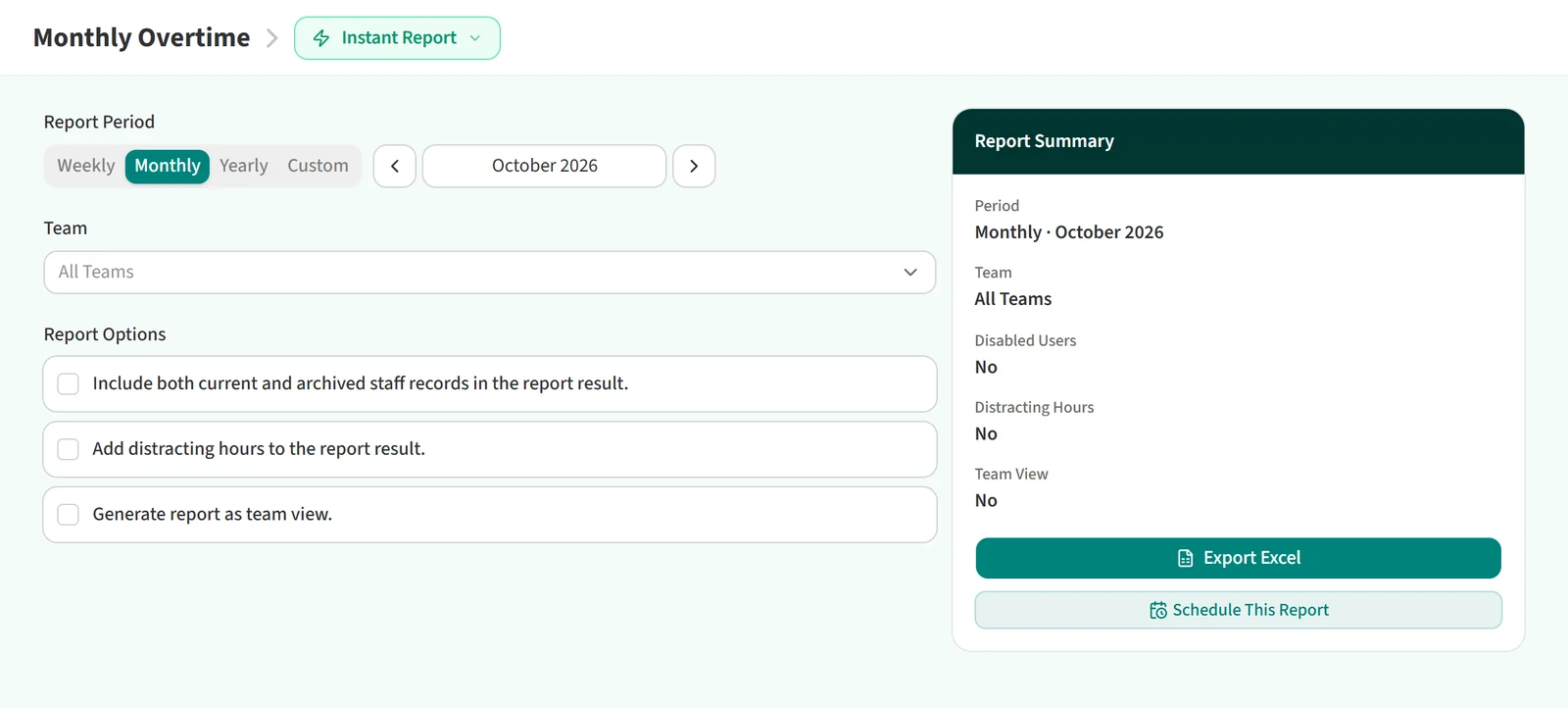
Report Options contains:
- Include both current and archived staff records in the report result.
- Add distracting hours to the report result.
- Generate report as team view.
When you pick teams, While calculating team averages, include child team averages as well. also appears. If the privacy feature is on for your account, the team view option is not shown.
A weekly or monthly report can be scheduled with Schedule This Report.
You may also be interested in: How to Get the Activity Timeline?