
How to Manage Berqun Activities?
Open Productivity > Manage Activities from the left menu. The apps and websites Berqun has recorded appear in two lists: Productive Activities on the left and Distracting Activities on the right. The header of each list shows the total number of activities and how many of them are websites and how many are applications.
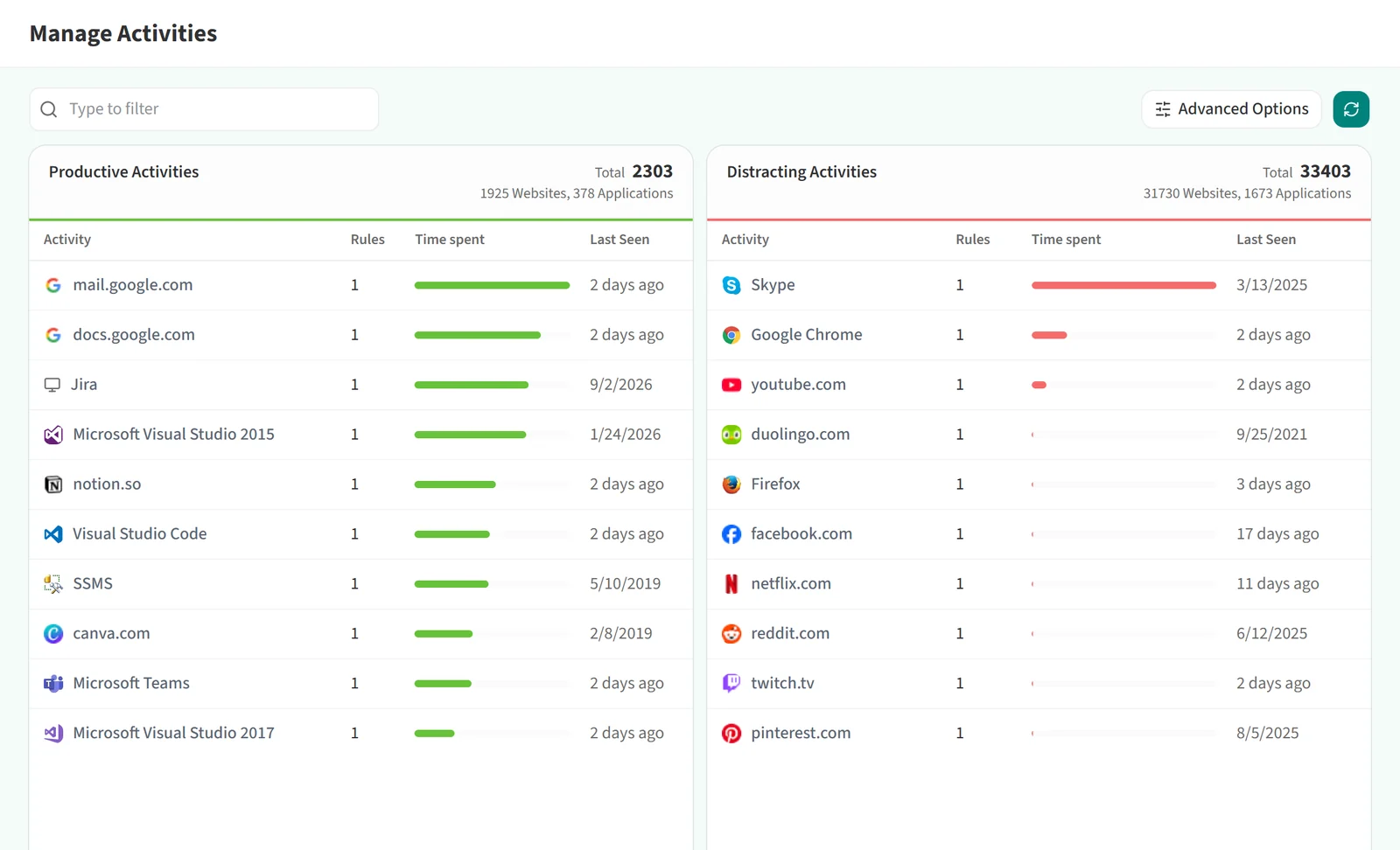
Each list has these columns:
- Activity: the name of the app or website.
- Rules: the number of rules applied to the activity.
- Time spent: a bar showing how much time was spent on the activity.
- Last Seen: when the activity was last used.
Search and sort
Type a name in the search box at the top to narrow the lists. The Advanced Options button opens a filter panel. Its Sort Order field lets you choose between Most Recent Activities and Most Time Spent Activities. The same panel also filters by activity type (application or website), the date the rule was created, the team or user the rule targets, and who created the rule.

Activity detail
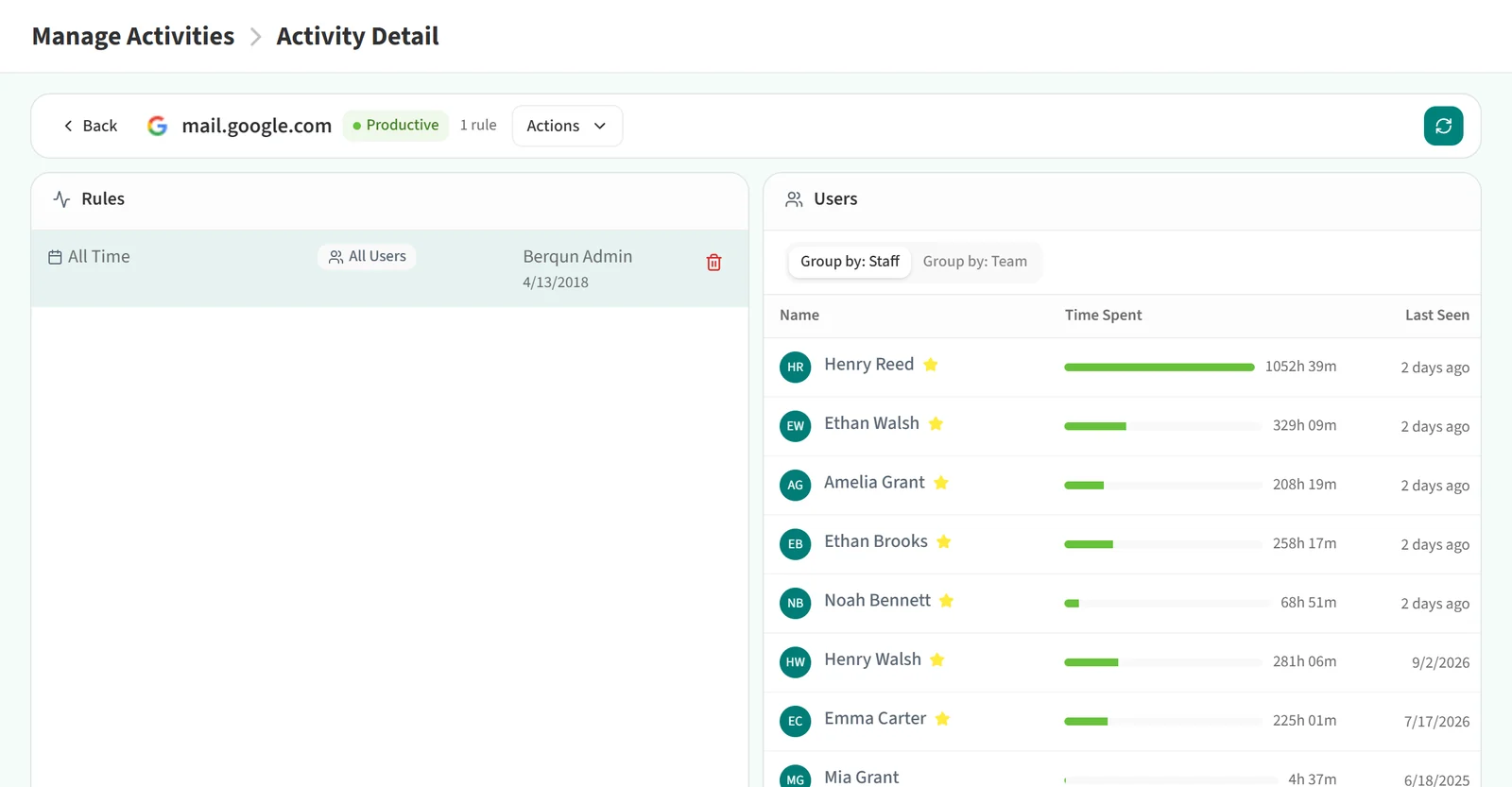
Click an activity in either list to open the Activity Detail page. The top bar shows the activity’s name, its status (Productive or Distracting), the number of rules and the Actions menu.
The Rules section on the left lists the rules applied to the activity: the effective period, who it applies to, and who created it on which date. You can delete a rule with the trash icon on its row.
The Users section on the right shows who spent how much time on the activity and when they last used it. Switch between Group by: Staff and Group by: Team to see the figures per person or per team.
To change an activity’s status, see Making a Productive Activity Unproductive and Making an Unproductive Activity Productive.