
Office Dashboard Overview
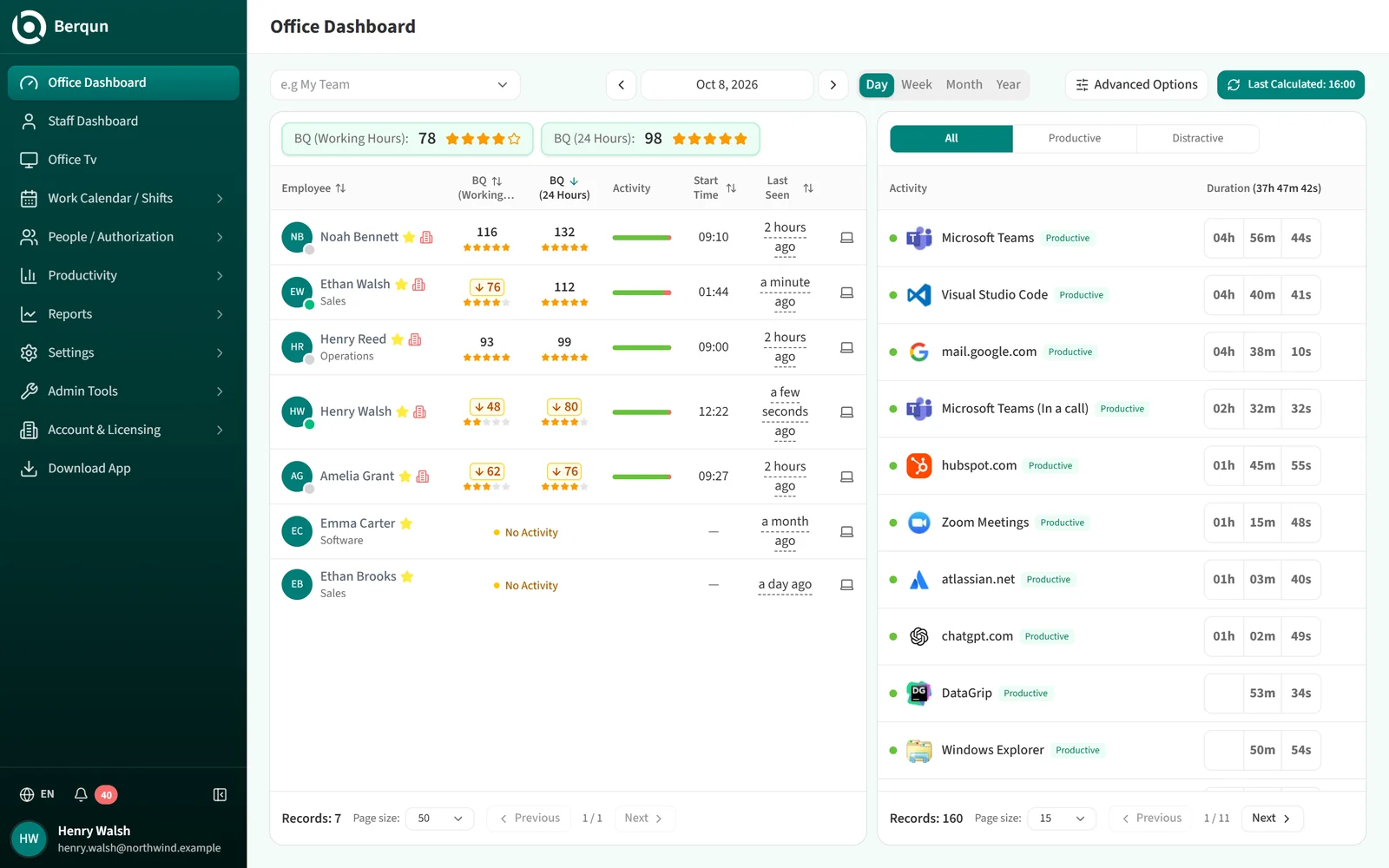
Click Office Dashboard in the left menu to see how your company, or the teams you pick, are doing today.
The toolbar
The toolbar at the top sets the scope for everything on the page:
- The team picker on the left (“e.g My Team”) lets you choose one or more teams. See Team-Based View.
- The date field in the middle and the Day, Week, Month and Year options set the period. See Viewing by Time Range.
- Advanced Options opens filters that narrow the employee list.
- The Last Calculated button shows when BQ scores were last calculated, and refreshes the data when you click it. See BQ Score and Recalculation.
The two panels
The employee table on the left has one row per person: BQ scores, activity split, start time and last seen time. The two boxes above the table show the average BQ score for the selected team and period. Click an employee’s name to open their Staff Dashboard for the same date.
The activity list on the right ranks the applications and websites used by the selected team in the selected period, with their durations. Use the All, Productive and Distractive tabs to narrow it.
Below each panel you will find the record count, a Page size selector and Previous / Next buttons.
Advanced Options
Click Advanced Options to open a pane with these filters:
- Search employees: searches by name, e-mail, reference code or computer name.
- Include former employee records: adds the historical records of employees who are no longer tracked.
- Show only employees below average: lists only the employees whose BQ score is below the average of the selected team and period.
- Day Status: limits the list to employees whose day is a Working Day, No Activity, On Leave, Public Holiday or Non-Working Day. With nothing ticked, everyone is shown.
- Work Location: All, Remote or Office.
Day Status and Work Location appear only in the Day view. Your choices take effect when you click Apply; Clear resets the controls in the pane. These filters only affect the employee list. The activity list on the right always covers the whole selected team and period. The number of active filters appears on the Advanced Options button.