
Daily Timeline
In the Day view, the Timeline section lists each of the employee’s activities in order. Pick Timeline from the drop-down next to the page title to open it.
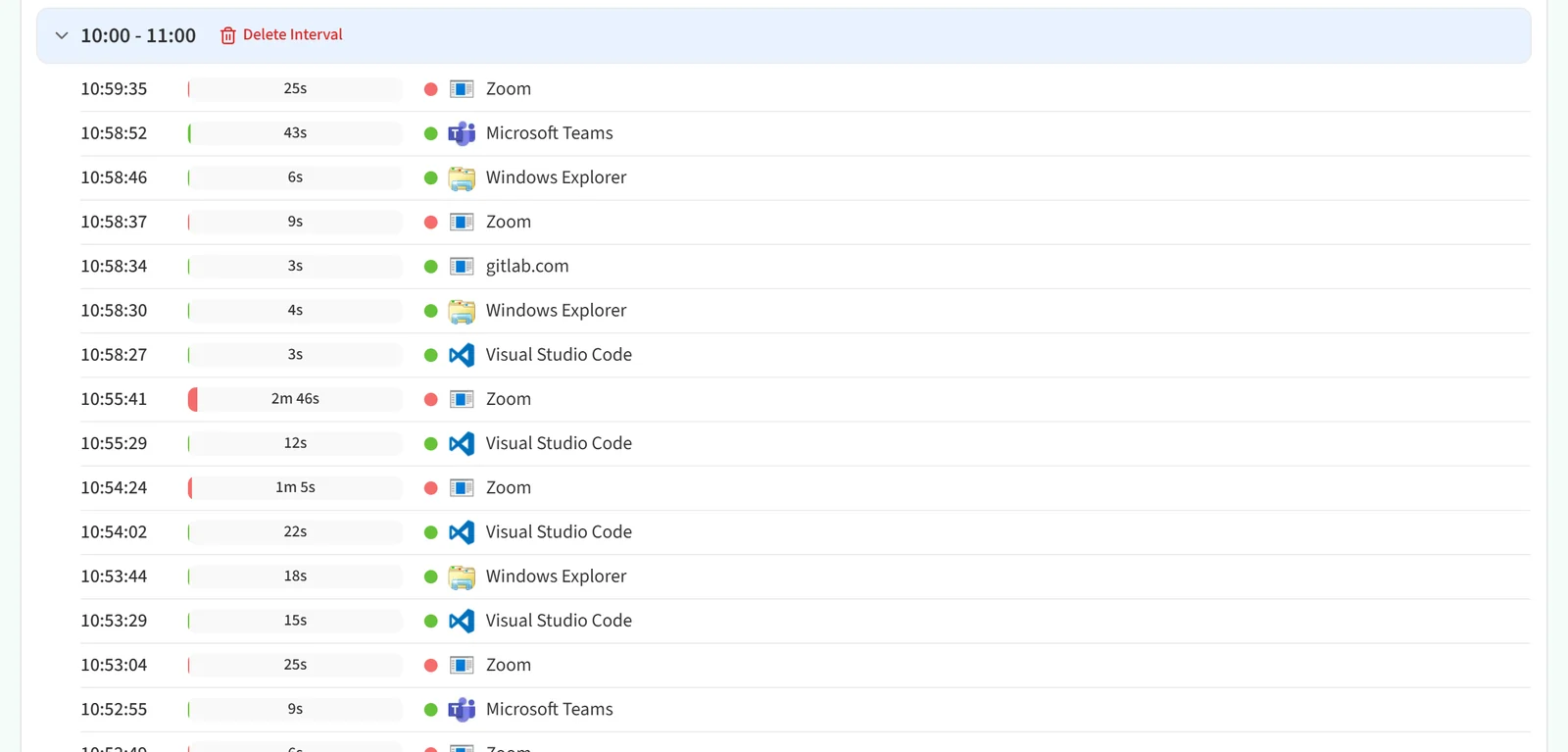
Activities are grouped by time interval, and each group’s header shows the interval (for example 10:00 - 11:00). Each row in a group shows the time the activity started, its duration, whether it was productive (green) or distracting (red), and the application or site name.
Changing the list
The tools above the list change how it looks:
- 10 min view and Hourly view: group the activities into 10-minute or one-hour intervals.
- Newest / Oldest: reverse the sort order.
- Collapse all / Expand all: close or open every group. You can also close a single group by clicking its header.
- Advanced Options: opens a filter panel on the right. There you can search by Activity Name, show or hide productive, distracting and no-activity records under Show Activity Types, and add records from outside working hours with Show out of working hours. Changes take effect when you click Apply.
Deleting an interval
If you have delete permission, a Delete Interval button appears in the group header. After you confirm, the records in that interval are deleted.
In the Week, Month and Year views this section turns into a period table. See “Weekly, Monthly and Yearly Score Chart” for details.