
How Can I Designate Managers in Berqun?
A manager is someone who can see other employees’ data as well as their own. Whose data they see depends on the teams they manage, or on whether they can manage all staff.
The manager list
In “People / Authorization”, open the Managers page. For each manager the list shows their name, email address and employee ID, the teams they manage in the “Managed Teams” column, and their role in the “Role” column. For people who manage all staff, the column reads “All Staff”.
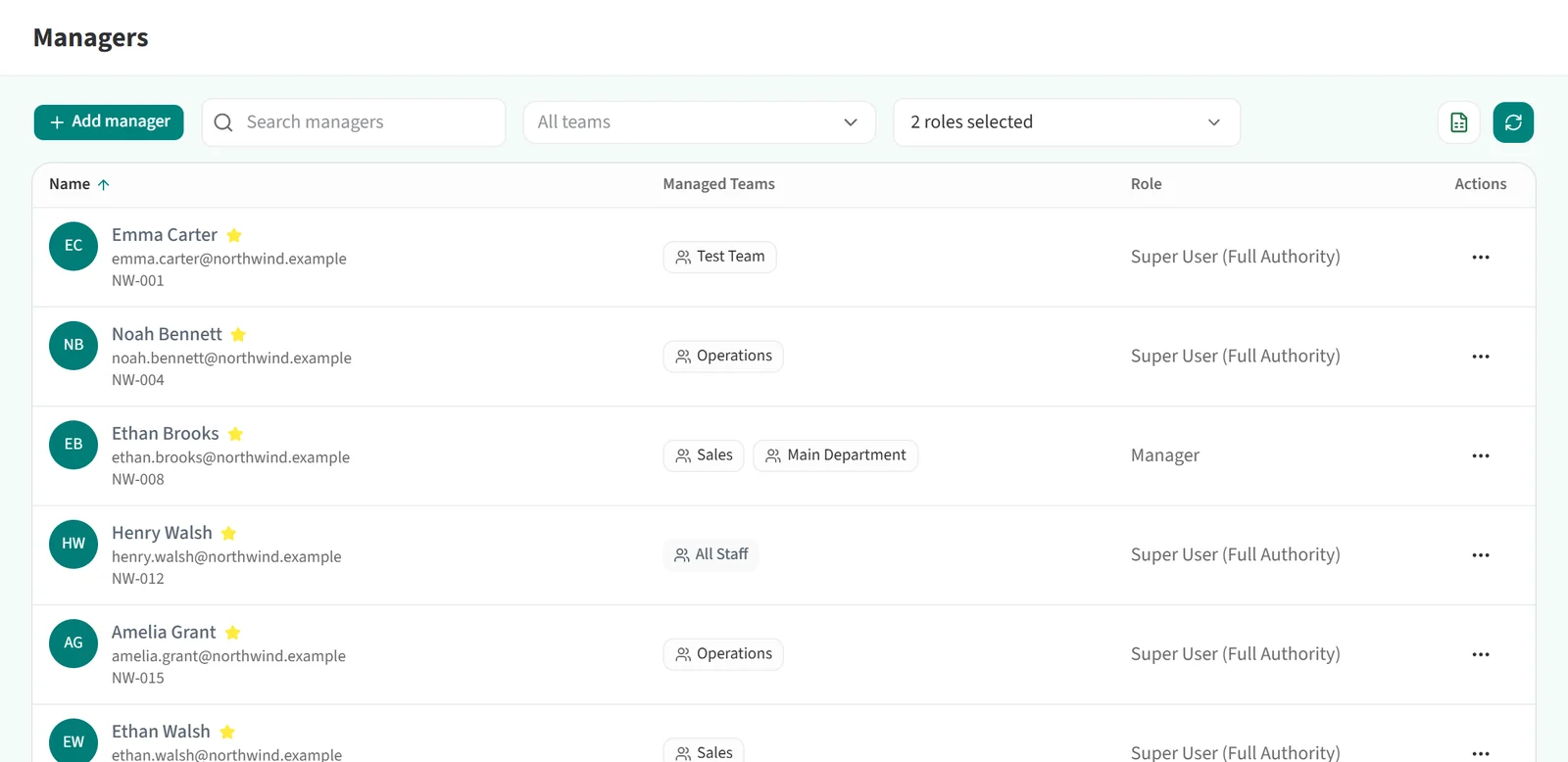
You can narrow the list by team with the “All teams” filter, and by role with the role filter next to it. When the page opens, the role filter is preset to the manager roles.
The ”…” menu on a row offers “Edit / Assign Role”, “View/Edit Team Assignment”, “Change Password” and “Remove manager”. Removing a manager whose computer has the Berqun agent installed does not delete the person: they are moved back to the Staff role, and you can give them a different role afterwards. Removing a manager whose agent has never connected deletes the record entirely; no tracked data belongs to that person.
Searching managers by name
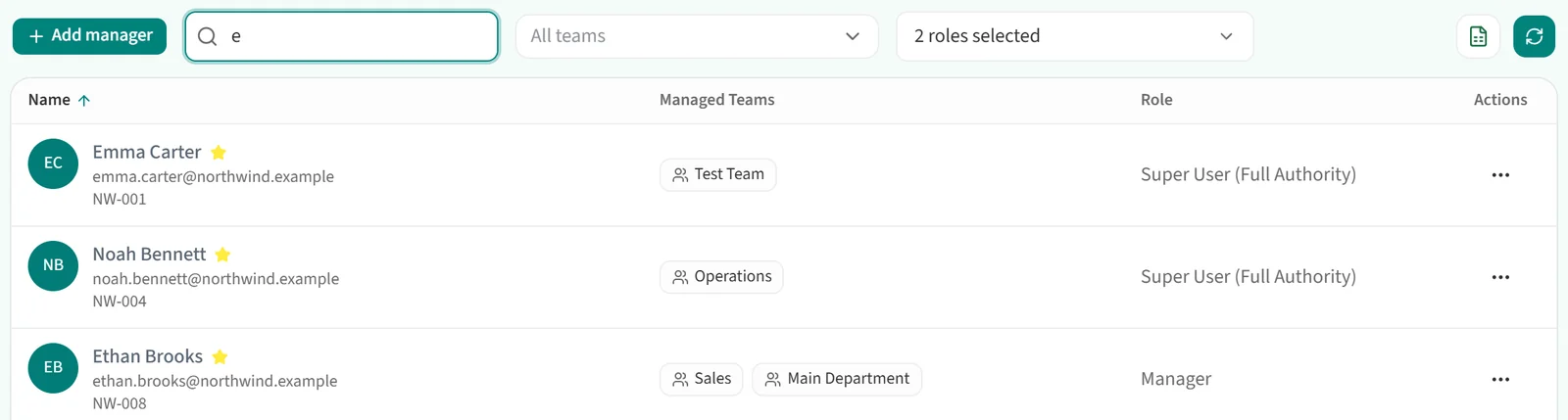
Type a few letters of the manager’s name into the “Search managers” box. The list shrinks to the managers whose names contain those letters.
Adding a manager

- Click “Add manager”. The “Add new” window has two steps: “Personal Info” and “Password”.
- In the “Personal Info” step, fill in “Full Name” and “Email”. The manager logs in to Berqun with this email address.
- Pick a role from the “Role” list. The role decides which screens the manager can open.
- If the manager should see every staff member’s data, tick “Can manage all staff”. The box is ticked automatically when you pick the super-user role. Then click “Next”.
- In the “Password” step, enter the manager’s password. The rules it must meet are shown below the field. If the checkbox below is ticked, a notification is sent to the manager’s email address.
- You have two ways to save:
- “Save” creates the manager.
- “Save & Proceed to Team Assignment” creates the manager and opens the team assignment window, where you pick the teams they will manage. This button is hidden when the super-user role is selected, because that role already manages all staff.
You can also assign teams later: open “View/Edit Team Assignment” from the ”…” menu on the manager’s row.