
Staff Dashboard Overview
Open it from Staff Dashboard in the left navigation. The screen shows how the selected employee worked on the selected day, week, month or year.
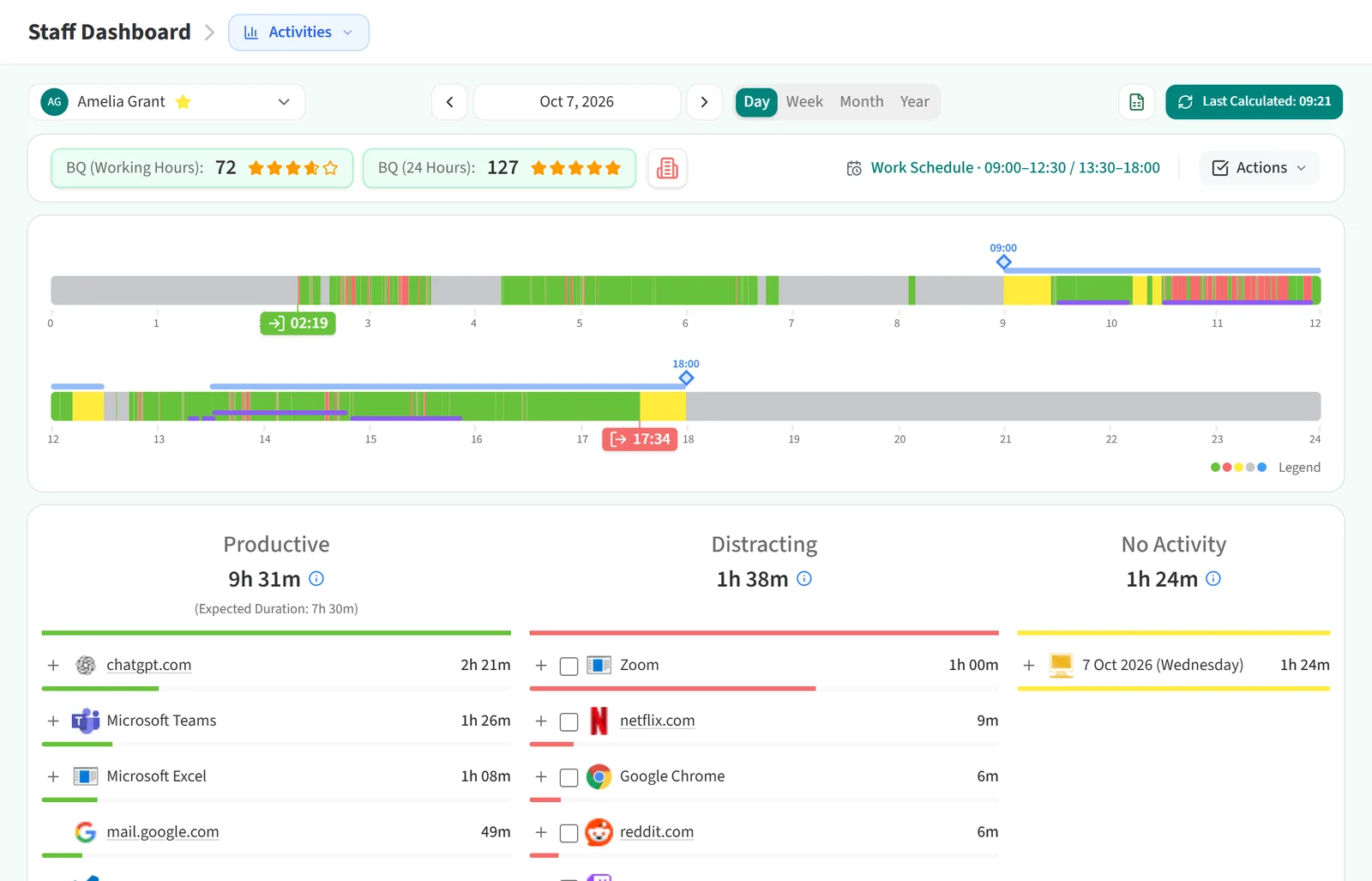
Parts of the screen
From top to bottom:
- Top bar. The employee picker on the left, the date and the Day / Week / Month / Year switch in the middle, and the Excel icon and Last Calculated button on the right. Clicking Last Calculated recalculates the BQ score for the selected day and refreshes the screen.
- Summary row. The BQ score boxes, an icon showing whether the employee worked from the office or remotely, the Work Schedule and the Actions menu. Work Schedule and Actions appear only in the Day view.
- Chart area. Two 12-hour time bars in the Day view, a BQ score chart in the other views.
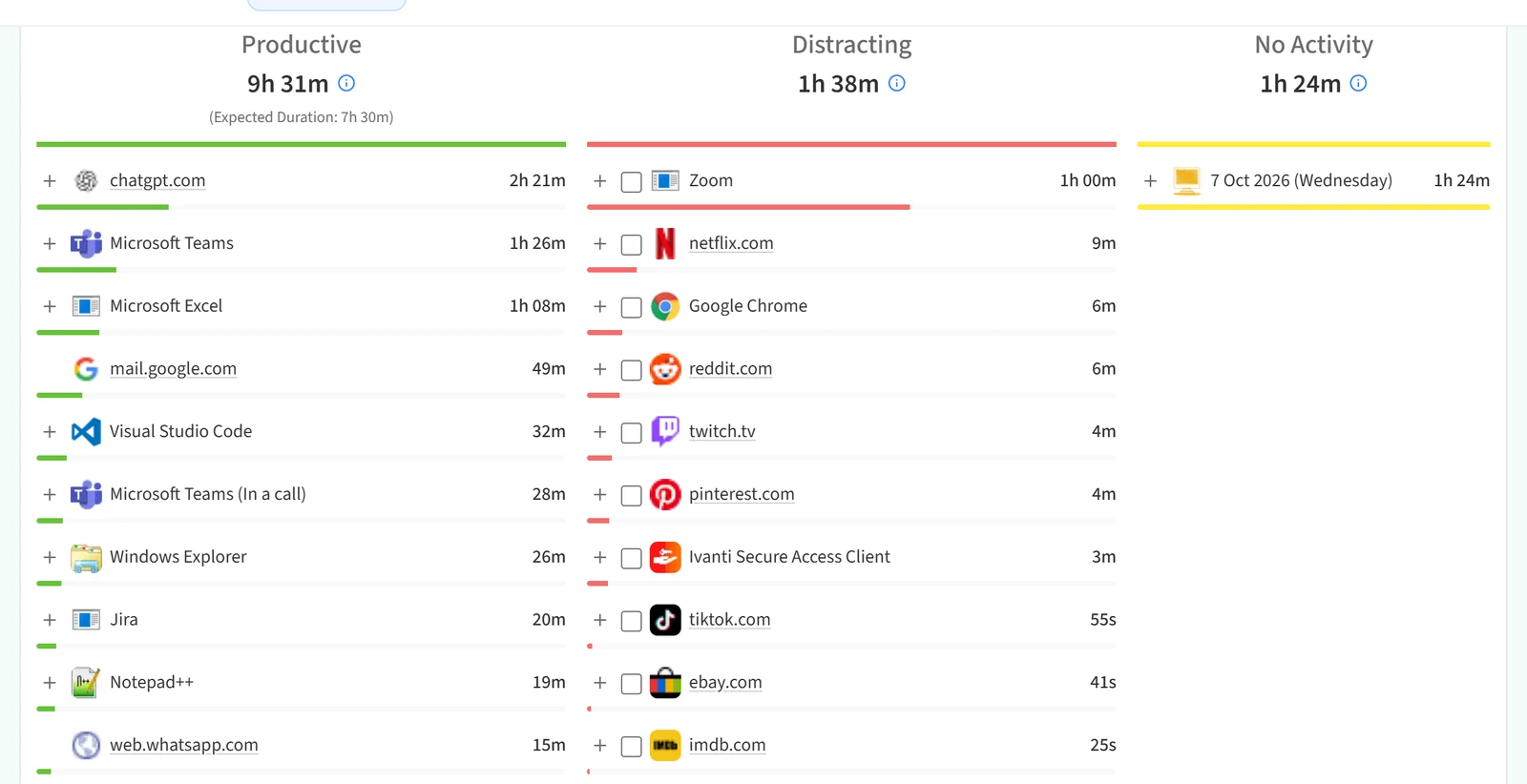
- Content area. Shows whichever section you pick from the drop-down next to the page title.
BQ score boxes
Depending on your company’s BQ setting you see either a single BQ box or two boxes. With two boxes, BQ (Working Hours) measures only the work done inside the scheduled working hours and BQ (24 Hours) measures the whole day.
Switching sections
The dashboard has no tab strip. The button next to the Staff Dashboard page title shows the section that is open (for example Activities). Click it and pick another section from the list:
- Activities
- Timeline (called Weekly view, Monthly view or Yearly view in the Week, Month and Year views)
- Tickets, if ticket management is enabled
- Tasks, if the performance module is enabled
- Screenshots, only in the Day view and only if screenshots are enabled
- Time Entries, only in the Day view
- Online Meetings, only in the Day view and only if a meeting integration is enabled
The list shows only the sections you have permission to see.
Articles in this section
- User Selection
- Daily Working Hours Time Bar
- Date-Based View
- Daily Activities
- Daily Timeline
- Weekly, Monthly and Yearly Score Chart
- Screenshots
- Daily Excel Export
- Weekly, Monthly and Yearly Excel Export