
How to Add Generic Rules
A generic rule applies to every app or website whose name matches the criteria you set, not to a single activity. For example, one rule can count every website containing your company’s domain as productive. The rule also covers matching activities recorded later.
Open Productivity > Generic Rules from the left menu. The list shows each rule’s criteria, Effective Period, Apply to, the person who created it and the creation date. Click a rule to open its Rule Detail page, which lists the activities the rule matched and the users it affects.
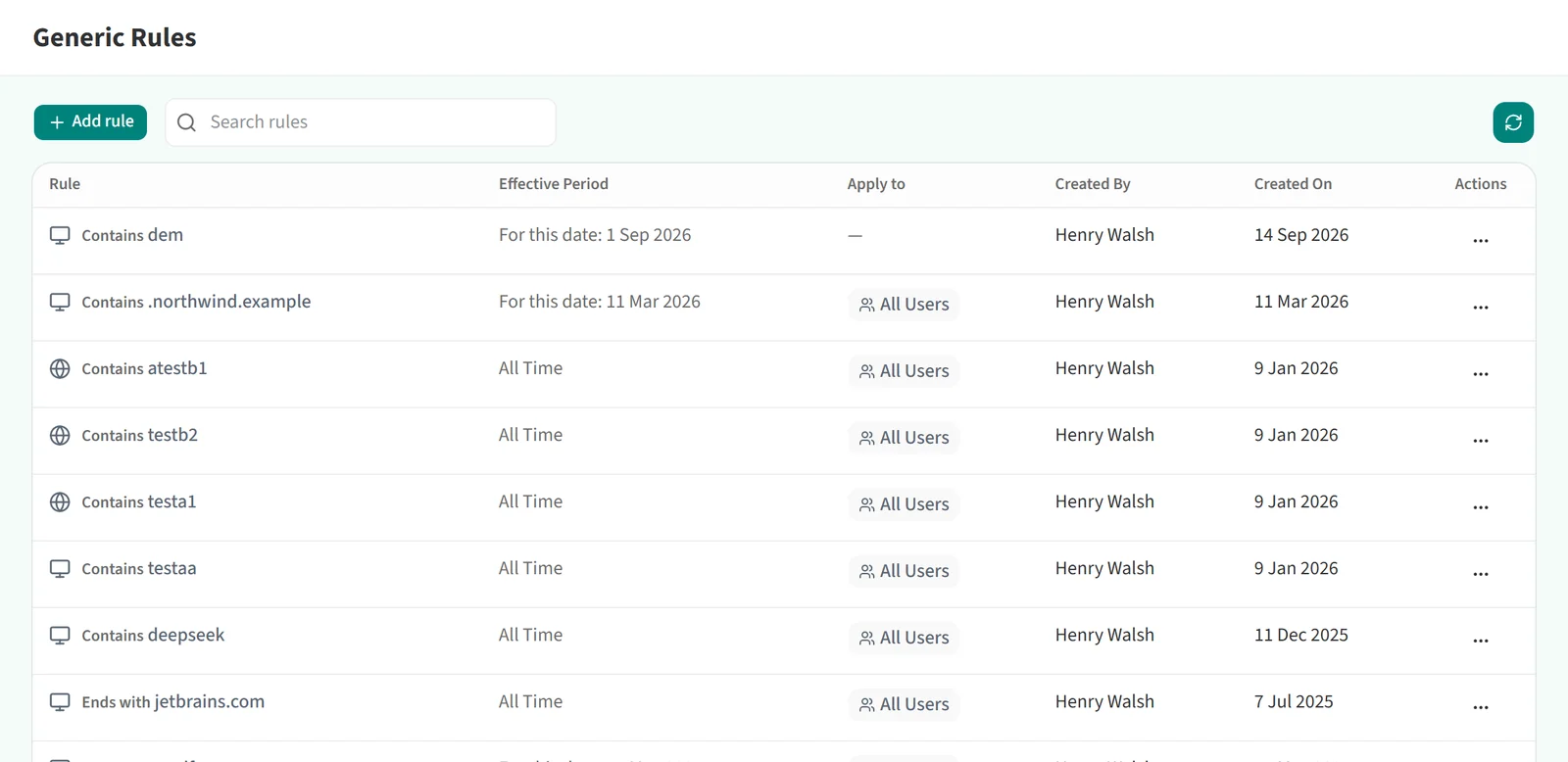
Adding a rule
- Click the Add rule button at the top left.

- In the New Generic Rule window, fill in Matching Criteria:
- In the first list, choose Websites or Applications.
- In the second list, choose how the name is matched: Is equal to, Begins with, Contains, Ends with or Regular expression.
- Type the keyword in the box below. Once you have typed at least 3 characters, the number of matching activities appears next to it. Click that number to see the matching activities.
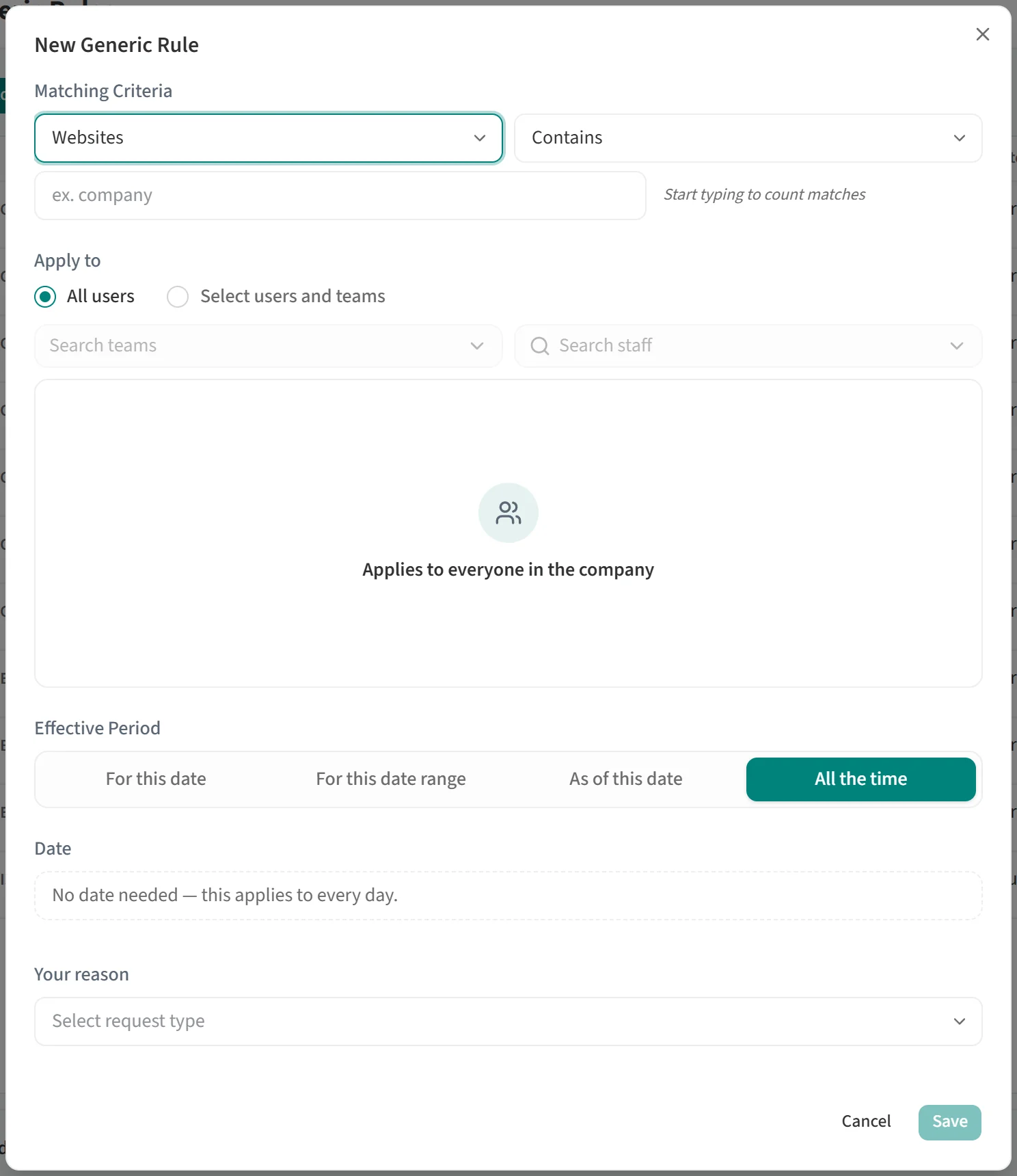

- Under Apply to, select All users or Select users and teams. With the second option, add people with the Search teams and Search staff boxes.
- Under Effective Period, choose For this date, For this date range, As of this date or All the time, and enter a date if needed.
- Pick a reason from the Your reason list and add a note if you like.
- Click Save.
When the rule is saved, pending activity requests that it covers are approved automatically, so you do not have to approve requests for the same activity one by one.
To delete a rule, open the … menu on its row in the list and choose Remove.
For handling requests from employees, see Managing Productivity Requests.